

Overview
Last updated 14 August 2026
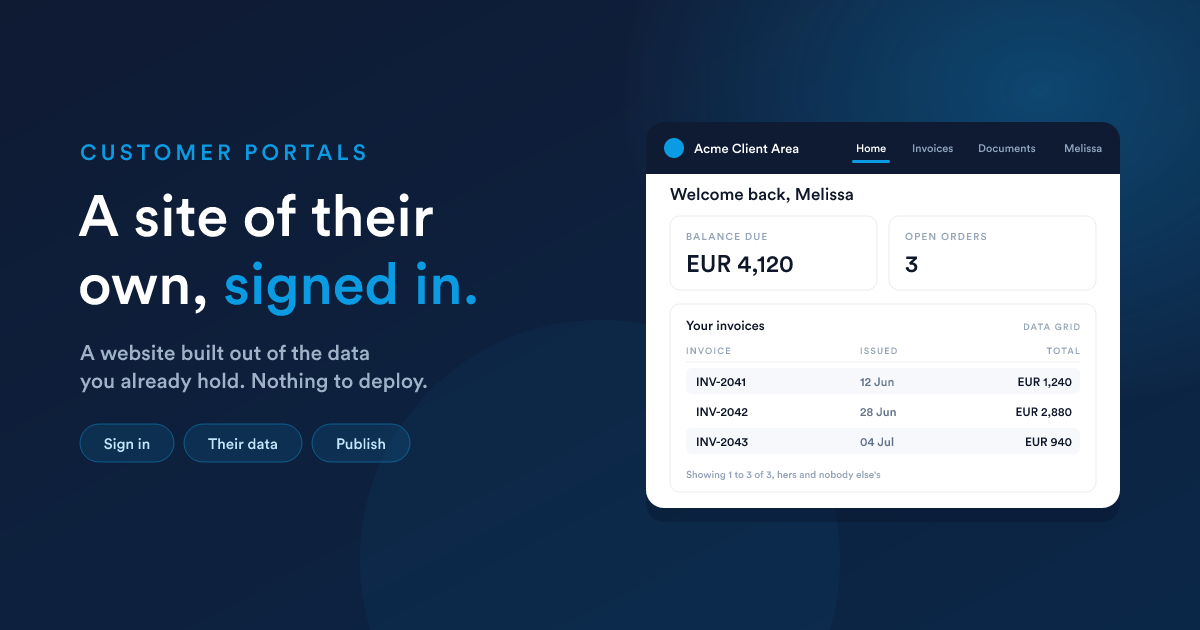
A customer portal is a small website that lives beside your CRM at its own public address:
https://yourcompany.flexie.io/portal/your-portalYour customer opens it and enters their email address. A code arrives in their inbox, they type it in, and the portal opens. From that moment every table, chart, figure and form on the page is about them and nobody else.
It is not a view of the CRM. Your staff screens, your pipeline, your other customers' records: none of that exists on a portal. What a customer sees is only what you deliberately put on the page.
What people use them for
| Use it as | Holding |
|---|---|
| A client area | invoices, quotes, orders, delivery status |
| A member area | bookings, appointments, documents, renewals |
| A supplier area | purchase orders, stock levels, a form to confirm a shipment |
| A field area | today's jobs on a map, a schedule, a form to report back |
The pieces
A portal has a name, a public address, and a rule saying which of your records count as its customers.
A page is one screen. The pages you create are the menu, so there is no separate navigation to keep in step.
A component is one thing on a page: a table, a chart, a figure, a calendar, a map, a form, a heading, a button, or your own markup. There are eleven types, and they are covered in The components.
Where the data comes from
Almost every data-bearing component is fed by a saved report, and that is the single most important thing to understand about portals:
The report decides what a customer can see. The portal does not add a condition to your report. The report has to narrow itself.
SELECT number, total, status
FROM   invoices
WHERE  contact_id = {{ entity.id }}
{{ entity.id }} is the customer who is signed in. A report without a line like that one shows every row to everybody, and no part of the product will warn you. This is covered properly in Data and reports, and it is worth reading before you put anything on a page.
Nothing is live until you publish
The builder does not write to the live portal. Every drag, resize and setting goes into a working copy that only you can see. Pressing Publish is the one action that changes what a customer is served, and it records a version you can restore later.
That means you can rearrange a live portal in the middle of the working day without anybody watching it move under them. See Publishing and versions.
Signing in, without a password
Customers have no password and no account to create. They are ordinary records on an ordinary entity (contacts, accounts, or a custom record type), and the email address already on the record is what proves who they are.
They enter that address, receive a code, and stay signed in for the rest of the session. Switching a customer off is a field on their record, and it takes effect on their next page load. Customers and sign-in covers the whole flow.
When you need something the components do not do
Two escape hatches, in order of reach:
- An HTML component: your own markup, styles and scripts, rendered on the server against the signed-in customer. See HTML components.
- The portal's JavaScript API: from inside that markup, drive the rest of the page. Refresh a table, open a dialog, or call a workflow of your own and draw the answer. See The JavaScript API, which is the complete method reference.
What is in this section
- Building a portal: creating one, the builder screen, the grid, placing and sizing components, and the settings that live on the portal itself.
- The components: all eleven types, every setting, and when to reach for which.
- Data and reports: feeding components from saved reports, and the scoping rule that keeps one customer out of another's data.
- Customers and sign-in: who a portal is for, how the code sign-in works, and how access is granted and withdrawn.
- HTML components: writing your own markup, styles and scripts, and what the portal does with them.
- The JavaScript API: the complete
FlexiePortalreference, every method, what it takes, what it returns, and how to call your own endpoints as the signed-in customer. - Publishing and versions: drafts, publishing, refusals, version history and restore, and the symptoms that catch people out.
Closely related
- Reports: what feeds a portal.
- Forms: what a form component shows.
- Dynamic Endpoints: workflows a portal component can call.
Who should read what
- Setting one up for the first time: Building a portal, then Customers and sign-in, then The components.
- Putting real data on it: Data and reports is the one that decides whether your portal is correct or a leak.
- Building something custom: HTML components and The JavaScript API.
- Running one day to day: Publishing and versions.