

Report Filters (in depth)
Last updated 25 May 2026
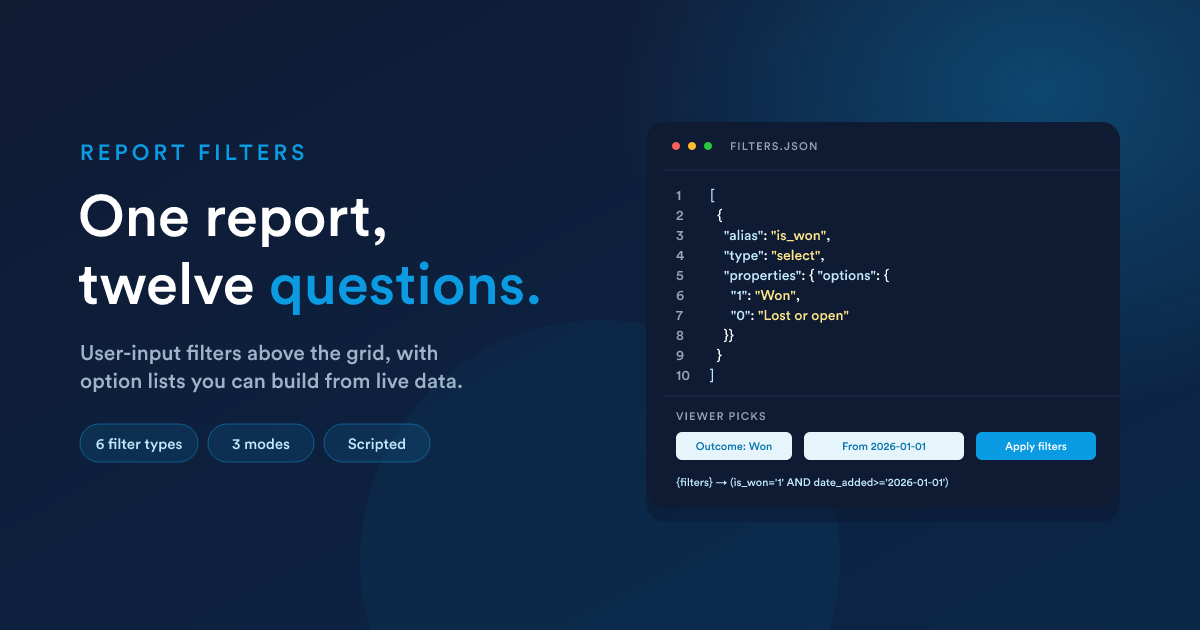
A report's query is the shape of an answer. Filters are how the person opening the report tightens that shape at view time, without editing the query.
A report titled "Won deals by salesperson" with a Date Added filter is the same report whether someone wants this week, this quarter, or the last twelve months. They pick the window above the grid; the report runs against that window; the CSV export uses the same window.
A report with no filters is fine. A report with the right filters is one report instead of twelve.
A report's filters are edited from the report itself; the filter editor lives at the direct URL /reports/filters/{id}.
How filters move through the system
You write the JSON once; everyone who opens the report sees the controls you defined; their inputs flow into your query.
The Filters JSON
The Filters setting on a report is a single JSON array. Each entry is either:
- an object that defines one user-facing filter, or
- the string literal
"manual", a flag that switches the whole report into manual mode.
The editor is a JSON code editor with syntax highlighting and auto-complete on the well-known keys (alias, label, type, properties, options, and the type values).
Filter object shape
{
  "alias": "date_added",
  "label": "Date Added",
  "type": "datetime",
  "properties": {}
}| Field | Required | What it means |
|---|---|---|
alias |
yes | The column name (or table-qualified t.col) the filter targets in your query. This is what gets compared against the user's value. |
label |
yes | The visible label shown above the grid. Plain text, anything you like. |
type |
yes | The control to render. One of the six filter types. |
properties |
conditional | Type-specific configuration. Required for select (its options map). Ignored for other types. |
A minimal example
[
  {
    "alias": "date_added",
    "label": "Date Added",
    "type": "datetime"
  },
  {
    "alias": "close_date",
    "label": "Close Date",
    "type": "datetime"
  },
  {
    "alias": "valid_email",
    "label": "Valid Email",
    "type": "select",
    "properties": {
      "options": {
        "1": "Yes",
        "0": "No"
      }
    }
  }
]
That's three filters: two date ranges and a yes/no drop-down.
Validation at save time
When you click Save on the filter editor, Flexie:
- Renders the JSON through the Flexie Scripting engine first (so any
{{ ... }}expressions you wrote produce their final values). - Parses the result as JSON.
- Walks the array and rejects anything malformed.
The JSON is rejected if:
- It isn't valid JSON after scripting runs.
- A filter entry is missing
alias,label, ortype. - The
typeisn't one oftext,select,datetime,date,time,number. - A
selectfilter has noproperties.options.
You'll see the error inline above the editor. The report's existing filter definition stays in place until you save a valid one.
The six filter types
type |
Control the viewer sees | What it filters against |
|---|---|---|
text |
A text input + operator drop-down | A string column |
number |
A numeric input + operator drop-down | A numeric column |
select |
A drop-down populated from your properties.options map |
A column whose values appear in the map |
date |
A date picker (with From / To for ranges) | A DATE column |
datetime |
A date+time picker (with From / To for ranges) | A DATETIME column |
time |
A time picker (with From / To for ranges) | A TIME column |
The operator drop-down appears next to text, number, and select inputs. Date, datetime, and time use From/To range fields directly without an explicit operator selector.
Operators per type
| Type | Operators |
|---|---|
text |
equals, does not equal, contains, does not contain, starts with, ends with, empty, not empty |
number |
equals, does not equal, greater than, less than, greater than or equal, less than or equal |
select |
equals, does not equal, empty, not empty |
date / datetime / time |
Range only (From / To), no explicit operator selector |
For dates, leaving From empty means "no lower bound"; leaving To empty means "no upper bound"; filling only one of them is fine and common.
The select options map
A select filter must specify properties.options as an object whose keys are the values stored in the database and whose values are the labels shown in the drop-down:
{
  "alias": "is_won",
  "label": "Outcome",
  "type": "select",
  "properties": {
    "options": {
      "1": "Won",
      "0": "Lost or open"
    }
  }
}
When the user picks "Won", the value "1" is what flows into the query.
The labels are not localised by Flexie. What you type is what the user sees. Use the language your team uses.
How user input reaches your query
Filter values are persisted in the user's session, keyed per report (flexie.report.{id}.filters). They survive page reloads and pagination for that user, and the CSV export uses the same filters as the current view.
Where the values actually get applied depends on how your query is shaped. There are three modes, in order of how Flexie decides.
Mode 1, {filters} placeholder in the query
The most common pattern. You put {filters} (or {{filters}}, the two are synonyms) somewhere in your WHERE clause, and Flexie substitutes a ready-built fragment:
SELECT id, name, amount, stage_id, date_added
FROM   deals
WHERE  is_published = 1
  AND  {filters}
ORDER  BY date_added DESC
With the user's input, say Outcome = Won and Date Added From = 2026-01-01, the {filters} token expands to:
(`deals`.`is_won` = '1' AND `deals`.`date_added` >= '2026-01-01')When the user hasn't picked any filters, {filters} is replaced with 1=1, a no-op so the surrounding AND doesn't dangle. You don't need to write conditional SQL.
The fragment is built by Flexie's own query-builder. Values are parameter-safe (it parameterises and then inlines), and column names are back-ticked. Operators chosen by the user are honoured (contains becomes LIKE '%...%', greater than becomes >).
Mode 2, no placeholder, no manual flag
If your query doesn't include {filters} and the filter array doesn't include "manual", the filter values are still applied. Flexie passes them behind the scenes to the report's data layer, which wraps your query and adds the same WHERE clause around it.
This is convenient: you can add a Filters JSON to any report without touching its SQL, and the filters just work.
The trade-off: you can't choose where the filters land. If your query has a
HAVINGclause, a sub-query, or aJOINwhere the filter belongs against a joined table, prefer Mode 1 so you control placement.
Mode 3, manual mode: filter values as scripting variables
If the filter array contains the string "manual":
[
  { "alias": "year", "label": "Year", "type": "number" },
  { "alias": "owner_id", "label": "Owner", "type": "select",
    "properties": { "options": { "12": "John D.", "13": "Jon D." } } },
  "manual"
]
Flexie does not generate any WHERE fragment. Instead, the user's inputs are exposed as Flexie Scripting variables inside the SQL, each keyed by its alias, and the auto-generated SQL fragment is also exposed as the variable __sql_filters.
You then weave the values into the query yourself:
SELECT id, name, amount
FROM   deals
WHERE  YEAR(date_added) = {{ year.input | number_format(0, '', '') }}
  AND  owner_id         = {{ owner_id.input }}
{% if amount_min %}
  AND  amount >= {{ amount_min.input }}
{% endif %}
ORDER  BY amount DESC
What each variable looks like:
{{ year       | json_encode | raw }}
{# →  {"operator":"eq","input":"2026"}                          #}

{{ owner_id   | json_encode | raw }}
{# →  {"operator":"eq","input":"12"}                            #}

{{ __sql_filters }}
{# →  (`year` = '2026' AND `owner_id` = '12')                   #}
Use .input to get the user-typed value. Use the whole object when you also care about the operator the user picked. Use __sql_filters when you want the same WHERE clause Flexie would have built, handy for "use the auto-built filter as a sub-clause and add my own conditions next to it".
Manual mode gives you total control but turns the filter into your problem. You decide how each value is used, including handling empty inputs. Wrap each filter use in
{% if ... %}so empty fields don't break the SQL.
Driving the filter definition itself with Flexie Scripting
This is the powerful, easy-to-miss part. The Filters JSON is rendered through Flexie Scripting before being parsed. Anywhere inside the JSON you can write {{ ... }} expressions, and they will be replaced with their results at the moment the report opens. The combined output then has to be valid JSON for the parser to accept it.
What this unlocks:
- A drop-down whose options come from a live query. Pick from your actual users, stages, statuses, products, custom-record types.
- Filters that include the current user's identity in their labels.
- Conditional filters. Only render certain filters if the viewer has a permission, or only if some data is present.
- Date defaults that update as time passes. "From: last 30 days" by default.
Pattern 1, dynamic select options from a query
Build the options map by looping over rows. The output between the braces must be a JSON object after rendering, so emit "key": "value" pairs with commas between them:
[
  {
    "alias": "owner_id",
    "label": "Owner",
    "type": "select",
    "properties": {
      "options": {
        {% for u in query("SELECT id, first_name, last_name FROM users WHERE is_published = 1 ORDER BY first_name LIMIT 200") %}
          "{{ u.id }}": "{{ u.first_name }} {{ u.last_name }}"{% if not loop.last %},{% endif %}
        {% endfor %}
      }
    }
  }
]
After the script runs, the saved JSON effectively becomes:
[
  {
    "alias": "owner_id",
    "label": "Owner",
    "type": "select",
    "properties": {
      "options": {
        "12": "John Doe",
        "13": "Jon Doe",
        "14": "Jane Doe"
      }
    }
  }
]
…which is what the JSON parser accepts. The viewer opens the report and sees a drop-down of real owners, updated every time they open the report.
Keep the
LIMITreasonable. The drop-down is built every open; thousands of options is unhelpful both for performance and for the person scanning the list. Build atextfilter against an indexed column if your domain is large.
Pattern 2, status drop-down driven by a small entity lookup
For statuses, pipeline stages, custom-record types, anything you don't hand-curate:
[
  {
    "alias": "stage_id",
    "label": "Pipeline Stage",
    "type": "select",
    "properties": {
      "options": {
        {% for s in query("SELECT id, name FROM stages WHERE is_published = 1 ORDER BY ordering_no") %}
          "{{ s.id }}": "{{ s.name }}"{% if not loop.last %},{% endif %}
        {% endfor %}
      }
    }
  }
]
Pattern 3, default a date filter to "last 30 days"
The Filters JSON only defines the controls; default values aren't part of the schema. But you can put dynamic labels in:
[
  {
    "alias": "date_added",
    "label": "Created (defaults to last 30 days, clear to widen)",
    "type": "datetime"
  }
]
Combine with manual mode if you want the default to actually apply:
SELECT id, name, date_added
FROM   leads
WHERE  date_added >= '{% if date_added.from %}{{ date_added.from }}{% else %}{{ dateAdd(now(), -30, "days", "Y-m-d") }}{% endif %}'
  {% if date_added.to %}
    AND date_added <= '{{ date_added.to }}'
  {% endif %}
ORDER BY date_added DESC
Pattern 4, hide a filter unless the viewer has the data
[
  {% set has_quotes = query("SELECT COUNT(*) AS n FROM quotes LIMIT 1")[0].n %}
  {% if has_quotes > 0 %}
  {
    "alias": "quote_status",
    "label": "Quote Status",
    "type": "select",
    "properties": {
      "options": { "draft": "Draft", "sent": "Sent", "accepted": "Accepted" }
    }
  }
  {% endif %}
]
Mind the JSON commas if you're using
{% if %}between filter objects. Pre-rendering tip: open the edit page, watch the live view, and check the browser's view-source on the filter HTML. What comes through is the JSON after scripting renders.
What you can call from inside the filter JSON
Everything that's available in Flexie Scripting, the same sandboxed function set used elsewhere. Most useful here:
query("SELECT ..."), for option lists from your own data.findOne(...),findMany(...),findCount(...), small lookups by field.now(),date(...),dateAdd(...), for date-relative defaults and labels.getUserById(id), when you know a specific user id and want to look it up.
The filter JSON is rendered with no record context. There is no "current viewer" object, no implicit globals. If you need to scope a query to the current viewer, that's what the
{user_id}placeholder is for, used in your SQL body, not in the filter JSON.
The same row-cap and read-only restrictions apply as anywhere else. See Where scripting runs and its limits.
The placeholder family in queries
{filters} isn't the only token you can drop into a query. Five tokens are replaced before the SQL runs (the double-brace forms are synonyms):
| Placeholder | Replaced with |
|---|---|
{user_id} / {{user_id}} |
The signed-in user's id |
{group_id} / {{group_id}} |
Their group id (-1 if none) |
{role_id} / {{role_id}} |
Their role id (-1 if none) |
{timezone} / {{timezone}} |
Their timezone (UTC if not set) |
{filters} / {{filters}} |
The generated WHERE fragment, or 1=1 if no filters are active |
These work in any report, data grid or HTML, and they work in CTEs as well as the main query.
How users use the filter controls
When someone opens the report:
- A row of "+ Add filter" controls appears above the grid, one per filter you defined.
- Picking a filter adds it as a chip with an operator drop-down (for text, number, and select) and the value input(s).
- Clicking Apply runs the report with the chosen values.
- Filters are remembered per-user, per-report, across pagination, until cleared.
- Clearing all filters and applying produces the unfiltered result (with
{filters}resolving to1=1). - Export to CSV uses the same active filters as the current view.
When the user reopens the report a day later, same browser, same login, their last filter set is still there.
Recipes
Owner drop-down populated from real users
[
  {
    "alias": "owner_id",
    "label": "Owner",
    "type": "select",
    "properties": {
      "options": {
        {% for u in query("SELECT id, first_name, last_name FROM users WHERE is_published = 1 ORDER BY first_name LIMIT 200") %}
          "{{ u.id }}": "{{ u.first_name }} {{ u.last_name }}"{% if not loop.last %},{% endif %}
        {% endfor %}
      }
    }
  }
]
"Just me" pattern. A drop-down can't pre-select the current viewer from inside the filter JSON (there is no viewer in scope here). What you can do is build a separate report that hard-scopes to the viewer via the
{user_id}SQL placeholder,WHERE owner_id = {user_id}, and share that as the "My …" version of the report.
Date-range with sensible default in manual mode
[
  { "alias": "date_added", "label": "Date Added", "type": "datetime" },
  "manual"
]
SELECT id, name, amount, date_added
FROM deals
WHERE date_added >= '{{ date_added.from ?: dateAdd(now(), -30, "days", "Y-m-d") }}'
{% if date_added.to %}
AND date_added <= '{{ date_added.to }}'
{% endif %}
ORDER BY date_added DESCMulti-purpose status filter, options from data
[
  {
    "alias": "stage_id",
    "label": "Stage",
    "type": "select",
    "properties": {
      "options": {
        {% for s in query("SELECT id, name FROM stages WHERE is_published = 1 ORDER BY ordering_no") %}
          "{{ s.id }}": "{{ s.name }}"{% if not loop.last %},{% endif %}
        {% endfor %}
      }
    }
  }
]
Text contains, scoped to a column
[
  { "alias": "email", "label": "Email contains", "type": "text" }
]
SELECT id, first_name, last_name, email
FROM contacts
WHERE is_published = 1
AND {filters}
ORDER BY date_added DESCThe user picks contains (default for text), types acme, and the {filters} token expands to (`contacts`.`email` LIKE '%acme%').
Gotchas
- A
selectfilter withoutproperties.optionsfails to save. You must supply the map. - The values in the
optionsmap are strings, even for integer ids in the database. Flexie compares them as strings against the column; comparisons against integer columns work because the database casts. selectis single-value. If you need multi-pick, build atextfilter with thecontainsoperator against a CSV column, or model the values as separate boolean flags.{filters}resolves to1=1when no filter is active. Design your surroundingWHEREto keep working with that. PuttingAND {filters}at the end is the safest pattern.- In
manualmode, empty inputs are not skipped automatically. A user who didn't pick a value still gets a (blank) variable injected. Guard every use with{% if ... %}or default with?:. - The filter aliases must match your column names. A typo here doesn't fail validation, it'll just produce an SQL error at view time.
- Avoid
LIMITon the data-feedingquery(...)calls inside filter JSON that exceed a few hundred. Drop-downs are not lists you scroll through, and the query runs on every report open.
What this connects to
- Data Grid reports: where the
{filters}placeholder is most often used. - HTML reports: filters work for HTML reports too. The difference is that you decide where the values appear (the filter values are available to your template as scripting variables, in manual mode, or pre-baked into the SQL via the same
{filters}token). - Flexie Scripting: the language used both inside the Filters JSON itself and inside a manual-mode SQL body.
- Reports in workflows and dashboards: when a report drives a dashboard widget, the report's filters can be preset for the widget viewer; filter handling and persistence still apply.
Next steps
- Viewing, exporting & access: how the view page works and how CSV export honours filters.
- Reports in workflows and dashboards: using filtered report data from elsewhere.