

Internal Forms
Last updated 25 May 2026
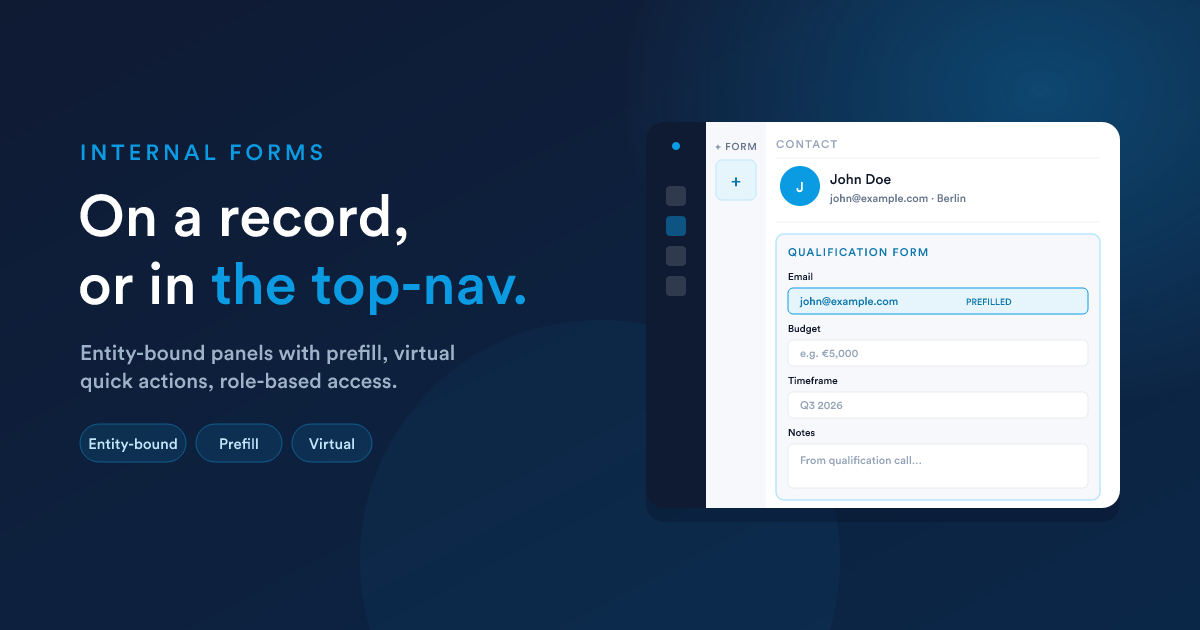
A form is Internal when its Form type was set to "Internal" at creation. The sub-flavour is decided by its record type:
- A real record type (Lead, Contact, Deal, Case, Invoice, Quote, a custom record type) → entity-bound internal form.
- The virtual record type → virtual internal form.
Both share the same builder, fields, and settings; they differ in where they appear and what the workflow listener gets.
Entity-bound internal forms
What they are
A form attached to a specific record type. When your team is looking at, say, a Contact's profile, they can open this form to fill in some structured information about that contact. The submission is stored against that contact, and the workflow that fires can read both:
- The submission's field values
- The current state of the record itself (because it's running on the contact)
Where the form appears
Open the form's Settings to decide where it surfaces:
| Setting | Effect |
|---|---|
| Show on profile | Adds a button or panel to the record's profile so the form is available from there (default: on). |
| Show in top navigation | Adds a quick-launcher entry to the top bar so a user can open the form from anywhere, but it will still need a record to attach to. |
| Show in dialer | Adds the form to the dialer panel, useful for call-logging forms. |
| Icon | The icon shown next to the form's name in those menus (a Font Awesome class such as far fa-plus-square). |
You can tick any combination.
Prefill, values pulled from the record
The form pre-fills any field whose key matches a field on the record. So a form with a field keyed email opened against a contact whose email is john@example.com will start with that email already in the box. The user can edit it before submitting.
This is automatic, no configuration needed. It works because the field's key (set in the field's per-field settings) is matched against the record's field aliases. If you want a prefill, give the field the same key as the record's field alias (which you can find in the relevant Custom Fields page, e.g. /contact-fields).
Access control
By default an internal form is visible to everyone who can use Flexie. To restrict it, set Form access in the form's Settings. You can grant access by any combination of:
- Permissions, anyone whose role is in the list.
- Groups, members of a user group.
- Users, specific people by name.
A user must match at least one entry to see the form.
What the workflow listener gets
The listener key is form.internal_submit, and the submission's data lands under __data.internal_form_submission:
{{ __data.internal_form_submission.data['First Name'] }}
{{ __data.internal_form_submission.data['Notes'] }}

{{ __data.internal_form_submission.date_added }}
{{ __data.internal_form_submission.__submitted_from_user_id }}
{{ __data.internal_form_submission.__submitted_from_user_full_name }}
Notice:
- The form's field values are nested under a
datakey. - The submitter (the signed-in user) is identified via
__submitted_from_user_idand__submitted_from_user_full_name. - A
date_addedtimestamp is provided.
Because the workflow runs on the record the form was opened against, you also have all of that record's fields at the top level (e.g. {{ id }}, {{ email }}). See Reading records for the rule.
Virtual internal forms
What they are
A form not tied to any one record, surfaced in the top navigation or dialer as a quick action your whole team can run from anywhere. There's no profile to attach the submission to; the submission stands alone.
Use it for things like:
- A "log a callback" form that captures a number + a follow-up time.
- A "report an issue" form that creates a case.
- An "intake" form that always creates a new lead from scratch.
Where it appears
Same Settings options as entity-bound forms (Show in top navigation, Show in dialer), except there's no profile to "Show on profile", because there's no record type.
What the workflow listener gets
The listener key is virtual_workflow.internal_virtual_entity_submit, and the submission's data lands under __data.internal_form_submission:
{{ __data.internal_form_submission.data['First Name'] }}
{{ __data.internal_form_submission.__submitted_from_user_id }}
{{ __data.internal_form_submission.__submitted_from_user_full_name }}
Notice, compared to the entity-bound listener:
- Field values are still nested under
data. - Submitter id and name are still there.
- There is no
date_addedin the enrichment from this listener. If you need the moment of submission, usenow()in your first step. - The workflow runs on the virtual record type, so there are no top-level record fields. Everything comes from
__data.
The two listeners side by side
Entity-bound (form.internal_submit) |
Virtual (virtual_workflow.internal_virtual_entity_submit) |
|
|---|---|---|
| Workflow record type | The record's type (Lead, Contact, …) | __virtual |
__data root |
internal_form_submission |
internal_form_submission |
| Field values under | …data.<key> |
…data.<key> |
| Submitter user id | …__submitted_from_user_id |
…__submitted_from_user_id |
| Submitter user name | …__submitted_from_user_full_name |
…__submitted_from_user_full_name |
date_added |
Yes | No |
| Current record fields available top-level | Yes, fields of the record the form opened against | No, there is no record |
If you build internal forms regularly, this table is worth bookmarking.
Pushing a form to a user from a workflow (the "trigger internal form" action)
A workflow can send a form to a user mid-flow and pause for them to fill it in. This is the Trigger Internal Form action.
Example flow:
- Trigger: a new high-value lead is assigned.
- Step 1: Trigger Internal Form "Qualification Questions", routed to the lead's owner.
- Step 2: once they submit, branch on the answers and continue.
The action accepts:
- Which form to push.
- Which user to send it to (the record's owner, a specific user, the current user).
- (For entity-bound flows) Which record to attach it to.
The action is immediate, it doesn't queue. The form appears for the chosen user in their interface, and the workflow's next step runs once the user submits.
This is covered in Forms in workflows.
Tips and pitfalls
- Don't put the same form on both top-nav and profile without thinking about the difference. From a profile it opens attached to that record; from the top-nav it opens unattached (requires picking one), or it submits as virtual if its record type is virtual.
- Match field keys to record aliases for fields you want pre-filled. If you name a field "First Name" but the record's field alias is
first_name, prefill won't work. Change the field key to match the alias. - Access control is OR, not AND. A user matching any of the listed roles, groups, or users gets in.
- A virtual internal form doesn't fire on a profile even if you tick "Show on profile", because it has no record type to bind to. The setting only affects entity-bound forms.
Next steps
- Submissions: viewing what your team has logged.
- Forms in workflows: the full listener and action reference.
- Public forms: the other flavour.