

Products
Last updated 26 May 2026
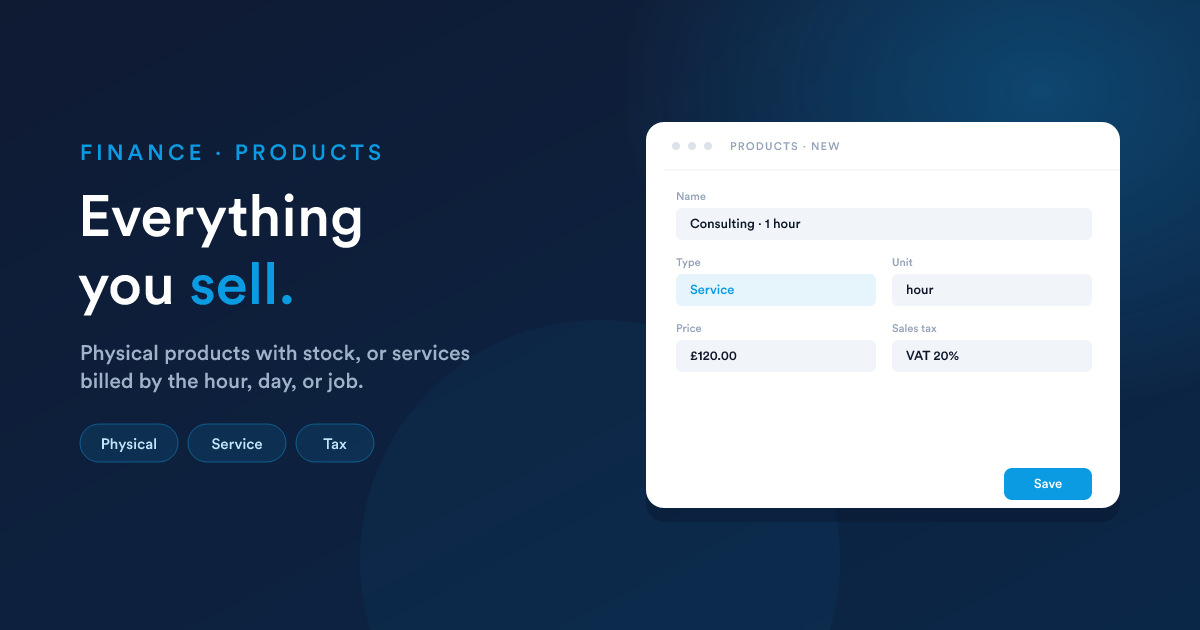
Everything you sell, whether a physical product with stock or a service billed by the hour, the day, or the job. Products are the building blocks every quote and every invoice is made of.
Two kinds of product
| Kind | What it is | Examples |
|---|---|---|
| Physical product | An item you keep stock of. Flexie tracks how many you've got and how many are available to sell. | A laptop, a bag of coffee, a printer cartridge. |
| Service | Something you do for a price. No stock, you can sell as many as your team can deliver. | A consultation, an hour of training, a fixed-price installation job. |
Both kinds share the same fields. The only difference is whether Flexie tracks stock for it.
Creating a product
Click New on the products list.
The basics
| Field | What it does |
|---|---|
| Name | The product's display name, shown on quotes and invoices. |
| Description | Detailed description; appears on the customer-facing documents. |
| Type | Inventory (physical product with stock) or Service. Pick this carefully; it controls the rest of the form. |
| SKU | Stock-keeping unit. Optional, but useful for matching against barcodes or imports. |
| Category | Group products under categories (Hardware, Consulting, Subscription). |
| Unit of measure | What you sell in: each / piece, hour, day, kg, litre, box, anything you need. Used on quote and invoice lines. |
| Price | The standard selling price. Customers and quotes can override it. |
| Cost | What it costs you (cost of goods sold). Used for margin reporting and accounting. |
Tax
| Field | What it does |
|---|---|
| Sales tax | Which tax to apply when this product appears on a quote or invoice. Pick from your tax library, or leave blank for a tax-exempt product. |
| Tax calculation | Tax-inclusive or Tax-exclusive, see below. |
Tax-inclusive vs. tax-exclusive
This is a choice you make per product:
- Tax-exclusive: the Price field is the price before tax. Tax gets added at line time. This is what most B2B businesses prefer: list price plus tax.
- Tax-inclusive: the Price field is the price with tax already baked in. The line still shows the tax separately, but the price you display to the customer doesn't change. Common in B2C / retail settings where shoppers expect "the price is the price."
Use whichever matches how you display prices to your customers. The total on the invoice is the same either way; the difference is just which number you wrote down as the Price.
Inventory (physical products only)
| Field | What it does |
|---|---|
| Needs fulfilment | Yes / No, does this product need to be shipped or delivered? When Yes, the product flows into your fulfilment / picking lists. |
| Quantity on hand | How many you currently have in stock. |
| Quantity available | How many are free to sell (on-hand minus anything reserved). |
| As-of date | The date the stock count was last set or adjusted. |
For services, these inventory fields aren't shown.
Accounting
| Field | What it does |
|---|---|
| Revenue account | Where revenue from this product lands in your chart of accounts (e.g. Service Revenue, Hardware Sales). |
| Expense account | Where the cost of goods sold for this product is recorded. |
| Inventory asset account | (Physical products only) Where this product's stock value sits on the balance sheet. |
If you leave these blank, sales of this product land in your default revenue account, see Accounting. Most accounts configure these once per product category rather than per product.
How a product appears on a quote or invoice
When you add a product to a quote or invoice line, Flexie pre-fills the line from the product:
- The line's description comes from the product's name + the product description (you can override per-line).
- The line's unit price comes from the product's price (override per-line for one-off discounts).
- The line's tax comes from the product's sales tax.
- The line's unit comes from the product's unit of measure.
You can then adjust quantity, apply a line-level discount (a percentage or a fixed amount), and Flexie computes the line total.
Down payment products
Flexie has one special product type, a Down Payment product, that's used behind the scenes by the Convert to Cash flow when you bill a deposit. You typically configure one of these during account setup; you don't add it to quotes by hand.
If you don't see a down-payment line on the new-invoice form when billing a deposit from a quote, ask your administrator to set up the Down Payment product.
Categories
Group your products with Categories: Hardware, Software, Consulting, Recurring fees, and so on. Categories also give you a convenient place to set the default revenue / expense / inventory accounts so you don't have to do it on every product.
Manage categories from the Categories screen, or inline when creating a product.
Pricing tips
- Set a sensible default price. It pre-fills the line. Use per-line overrides for negotiated deals, that way the product's list price stays clean.
- Cost matters even when you're not strictly accounting. Setting a realistic cost is what makes margin reports useful.
- Tax-inclusive prices. If you sell to consumers in a region where prices are displayed VAT-inclusive (most of Europe, for example), set those products to Tax-inclusive. Otherwise the customer sees one price online and another on the invoice.
- Service products with a "per hour" unit are perfect for time tracking, the line shows 4 hours × £80 = £320 and reads naturally on the invoice.
Gotchas
- Changing a product's price doesn't change existing quotes or invoices. Once it's on a line, the price is captured on the line. Updating the product affects only new lines added from that point on.
- Changing a product's tax doesn't change existing lines either, same reason. Re-add the product to a quote or invoice if you want the new tax to apply.
- Stock changes don't happen automatically on sale. The current build doesn't decrement quantity on hand when you finalise an invoice. That's intentional, since not every business wants to treat invoice = stock movement. Use the inventory adjustment screen to record stock movements explicitly.
- Categories aren't auto-applied. Setting a default revenue account on a category doesn't retroactively update existing products. It's the default for the next product you create in that category.