

Invoices
Last updated 26 May 2026
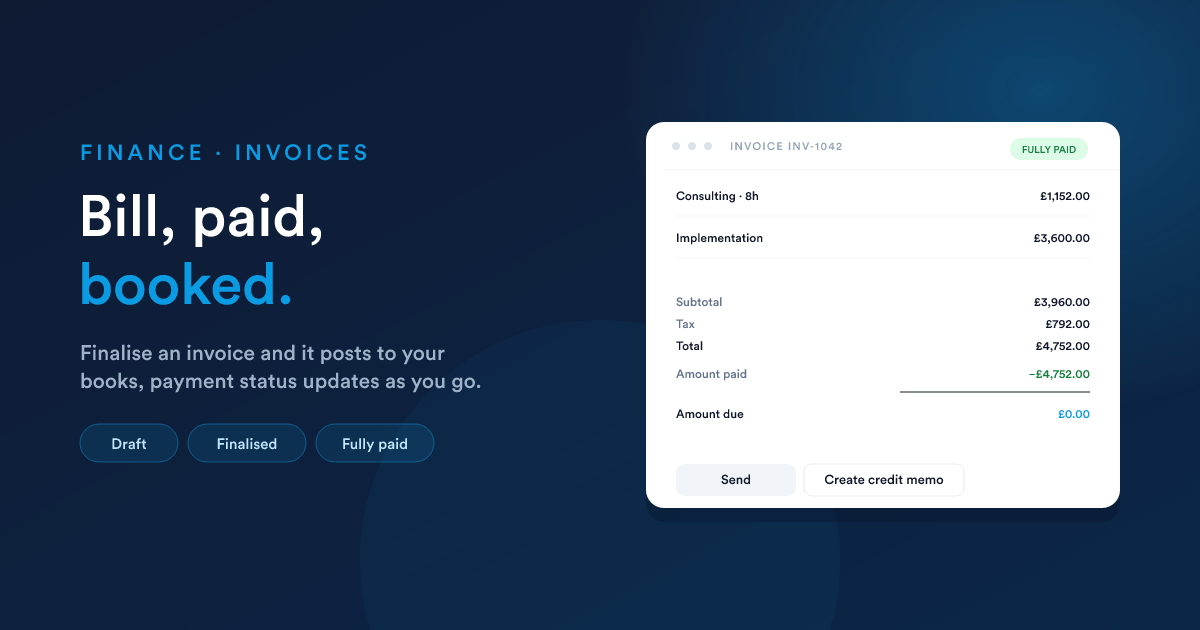
The bill you send a customer. Created on its own, or more often, from a quote. An invoice is the moment a sale becomes real revenue in your books.
What an invoice is
An invoice is a formal request for payment. It lists what was sold, the amount owed, when it's due, and how to pay.
Unlike a quote, an invoice is financial. Finalising an invoice posts journal entries to your chart of accounts, adds the customer's balance to your accounts receivable, and starts the clock on the due date.
Where invoices come from
| Source | When |
|---|---|
| From a quote | Most common. The customer agreed; you turn the quote into one or several invoices via Convert to Cash. |
| Standalone (manual) | One-off invoices, no quote was needed. Click New on the invoices list. |
| From an automation | A workflow action can create an invoice, see Workflow automation. |
The form is the same in all three cases; only the starting point differs.
Creating an invoice manually
Click New on the invoices list.
The header
| Field | What it does |
|---|---|
| Customer name | The person or company being billed. |
| Customer (record link) | Link to the contact, lead, or account, the invoice appears on their timeline. |
| Deal | Optional, link to a deal. |
| Purchase order | The customer's PO number, if they've given you one. Shown on the PDF for their records. |
| Owner | The user who owns the invoice (defaults to you). |
Addresses
Two address blocks, billing and shipping, same as on a quote. Pre-filled from the customer if you've linked one.
Currency
| Field | What it does |
|---|---|
| Currency | The currency the invoice is in. |
| Exchange rate | Conversion rate to your account's base currency at the time of issue. |
Dates
| Field | What it does |
|---|---|
| Issue date | When the invoice was raised. Defaults to today. |
| Due date | When payment is due. Defaults to a configurable number of days after the issue date (often 30 days). |
| Terms | Your payment terms, e.g. "Net 30, late payment carries 1% per month." Shown on the PDF. |
| Internal note | Notes only your team sees. |
Line items
Same model as a quote, pick a product, override price, quantity, discount, or tax per line as needed.
The totals block at the bottom shows Subtotal, Discount, Tax, and Total, and on a finalised invoice, also Amount paid and Amount due.
Down payment lines
Invoices created from a quote with a down payment carry an extra line, automatically, showing the down-payment amount and reducing the invoice subtotal. You don't add this line by hand; the Convert to Cash flow inserts it for you.
Invoice status
An invoice has two statuses that move independently, a lifecycle status and a payment status.
Lifecycle status
| Status | Meaning |
|---|---|
| Draft | Being worked on. Not yet finalised; can still be edited or deleted without leaving a trace. |
| Finalised | Locked. The invoice number is assigned, the document is sent (or downloadable), and journal entries are posted to the books. Edits are restricted from here on. |
The big difference: a draft invoice is invisible to your books; a finalised invoice is the real thing.
Payment status
| Status | Meaning |
|---|---|
| Not paid | No payments recorded yet. |
| Partially paid | One or more payments recorded, but the total owed isn't covered. |
| Fully paid | The total has been paid off. |
The payment status updates automatically as you record payments, see Payments.
You'll also see Overdue as a label on the invoice list, that's not a separate status, just a flag that the due date has passed and the invoice isn't fully paid.
Invoice numbering
Each finalised invoice gets an invoice number from a sequence, typically incrementing (1001, 1002, 1003). The sequence is set up once on the account.
Draft invoices don't have a number yet. The number is assigned at the moment of finalisation, so your number sequence stays gap-free (no holes from deleted drafts).
Sending the invoice
Same three options as a quote:
- Download PDF.
- Email with PDF attached, pick from your invoice email templates.
- SMS or WhatsApp with a link to the PDF.
The PDF shows your branding, the customer's details, the line items, the totals, the due date, and your payment terms.
Credit memos (refunds and returns)
Sometimes a sale needs to come undone, the customer returns goods, gets a partial refund, or you over-billed.
That's a credit memo. It's an invoice with a negative effect: when finalised, it reduces the customer's outstanding balance and posts reversing journal entries to the books.
To create one:
- Open the original invoice → Create credit memo.
- Adjust the lines (full credit, or just the lines being credited).
- Finalise the credit memo.
The credit memo links back to the original invoice for traceability. Both records stay in your books; the credit memo just reverses some or all of the original.
Editing a finalised invoice
By default, finalised invoices are locked. If you really need to correct one (e.g. a typo in the customer's name):
- Small text changes: your administrator can permit edits to cosmetic fields (terms, customer name).
- Amount changes: issue a credit memo for the difference and then a new invoice for the corrected amount. This preserves the audit trail.
Deleting a finalised invoice is generally not allowed, it would leave a gap in your records. The credit-memo approach handles errors cleanly.
Workflow integration
The two events you'll most often build automations on:
- Invoice finalised: when a draft becomes a real invoice. Use this to send the invoice to the customer automatically.
- Invoice paid: when an invoice goes from partially paid to fully paid. Use this for thank-you messages, fulfilment triggers, or a "deal closed-won" status change.
See Workflow automation for how to build automations off these events.
Gotchas
- Drafts can be deleted; finalised invoices can't. That's intentional, once it's a real invoice, the audit trail matters.
- A line's price is captured at line-time. Changing the master product price later doesn't change existing invoices.
- The invoice number sequence is account-wide. If two users create draft invoices and finalise them, the numbers reflect the order of finalisation, not the order of creation.
- The due date is just a date. Flexie doesn't auto-charge a customer when an invoice goes overdue, but with Workflow automation you can schedule polite reminders (email, SMS, WhatsApp) at chosen intervals.
- Foreign currency on the books. A finalised invoice in a foreign currency uses its exchange rate to post the equivalent base-currency amount to your books. The customer still owes you the foreign-currency amount; the gain or loss when payment comes in at a different exchange rate is recorded separately.
Next
- Convert to Cash: turning a quote into one or more invoices, including the down-payment flow and the 100% rule.
- Payments: recording what the customer pays.
- Accounting: what finalising an invoice does to your books.