

SMS Channel
Last updated 26 May 2026
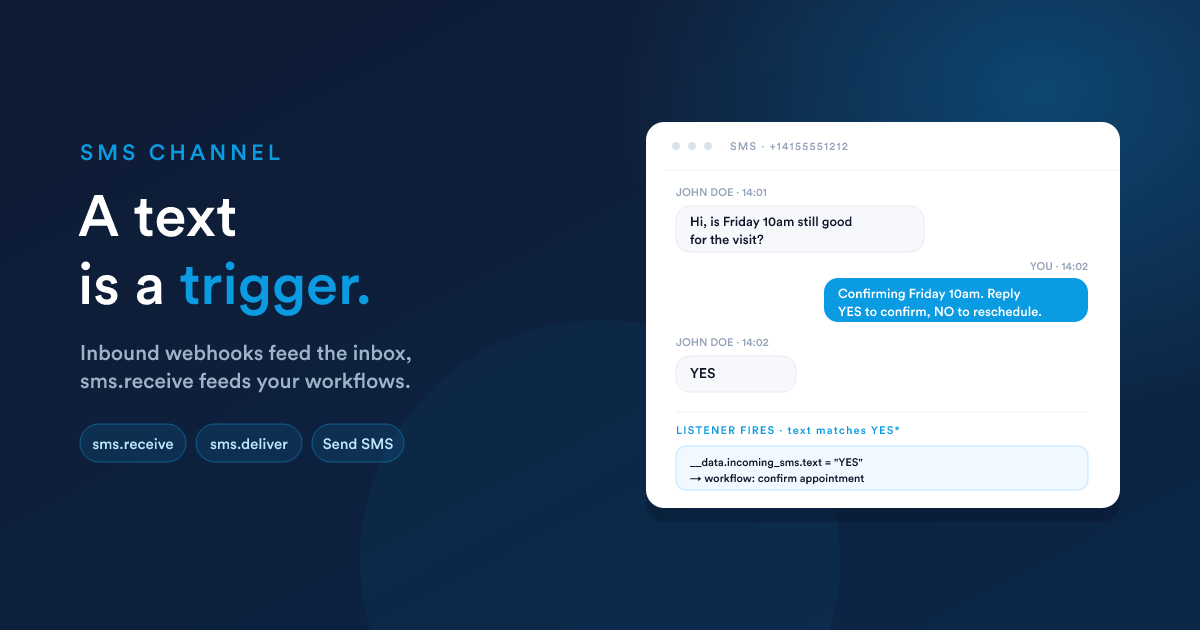
A connected text-messaging line lets your team send and receive SMS straight from the inbox or from any customer's page. Incoming texts land in the inbox, link to the right customer automatically, and can trigger workflows the moment they come in.
A channel switcher in the inbox lets you narrow the view to SMS. The provider itself is configured once for the whole account by a system administrator.
What "the SMS channel" is
A connected text-messaging line (or several). Outbound messages are sent through the configured provider; incoming messages come in from the provider and surface in the shared inbox alongside email and WhatsApp.
Once set up, SMS works the same way as email from a user's point of view: open a customer, click the SMS icon, type, send. The conversation lives in the inbox and on the customer's timeline; replies from the customer pop back into the inbox.
Connecting an SMS line
Configuration is account-wide. Once set, every user with access can send and receive SMS through the line.
The form has these fields:
| Field | Meaning |
|---|---|
| SMS Provider | The SMS provider you're connecting to. Pick the one you have an account with. The fields below change to match. |
| Provider credentials | For each supported provider, a sub-form appears with the credentials your account needs (typically an account identifier, an auth key, and the phone numbers your account can send from). |
| Append Country Prefix | (Optional) A default country prefix (+1, +44, +355, etc.) that Flexie will automatically prepend to any outbound phone number that doesn't already include a country code. Numbers that already start with a recognised prefix are left untouched. See Handling messy phone data below. |
| Access | Who can use the SMS channel: combinations of "all users", specific roles, user groups, or named users. The same model as everywhere else in Flexie. |
| Schedule-send presets | Up to five quick-pick times for the Send later menu (e.g. "Tomorrow 9am", "Monday morning"). |
After saving, Test the provider with a known phone number to confirm the credentials work. The test sends a single short message and reports back the provider's status.
Handling messy phone data: Append Country Prefix
Real-world phone fields are messy. Some records have full international numbers like +14155551212; some have local numbers like (415) 555-1212, 0415 555 1212, or just 4155551212, whatever the operator typed when they captured the lead.
The Append Country Prefix setting is how you cope with that. Set it to the country you mostly do business in (e.g. +1 for the US, +44 for the UK, +355 for Albania), and on every outbound message:
- A number that already starts with a recognised country code (for instance
+44 7700 900 123) is sent as-is. - A number that doesn't have a country code (
07700 900 123,(415) 555-1212,4155551212) gets your configured prefix added automatically before it goes out.
It's the cheapest way to make a database with a mix of formats just work, without having to clean up every phone field by hand. The same prefix is also used when matching inbound numbers back to your records, so an inbound from +447700900123 matches a contact stored as 07700 900 123.
Leave Append Country Prefix blank if your customer base spans many countries and every phone field is already stored in full international format. The setting prepends one prefix only; it can't guess which country a bare local number belongs to.
How numbers look once sent
Outbound numbers go out to the provider in international format (starting with +, country code, then the local number, no spaces or dashes). So a customer record stored as (415) 555-1212 with Append Country Prefix set to +1 is sent as +14155551212. The same normalisation is used when matching inbound numbers to your records.
Sending SMS
From the inbox
In the SMS channel, the Compose button opens a small form:
| Field | What you fill in |
|---|---|
| Recipient phone | The destination number (auto-complete searches by name across contacts, leads, and accounts) |
| From line | Which of your connected lines to send through (if more than one) |
| Message | The text body. Character counter shows length and segment count |
| Attach a quote/invoice PDF | Optional. Attaches a short link to the document; the recipient gets a link they can tap to open the file. |
| Send later | Pick one of your saved presets, or a custom time |
From a customer's page
The timeline view on contact, lead, account, deal, or case has an SMS action that pre-fills the recipient's phone field.
From a workflow
The workflow action Send SMS lets you build automated outbound messages: appointment reminders, follow-ups, payment-due nudges. Form fields:
- Message: the SMS body, with Flexie Scripting variables (e.g.
Hi {{ first_name }}, your invoice {{ invoices[0].name }} is due tomorrow.). - Mobile field: which field on the customer's record holds the phone number to send to (a phone/mobile field).
- From line: which connected line to send through.
See Workflows & automation for the trigger-plus-action combinations.
How incoming SMS is handled
When the provider receives a text addressed to one of your numbers, it notifies Flexie. Flexie then:
- Normalises the numbers to international format.
- Saves the message: the text, sender and recipient numbers, the provider's status (
queued/sent/delivered/failed), and marks it as unread. - Looks up every record whose phone field matches the sender's number. The message appears on every matched record's timeline.
- Threads to a case: if the same number was sent a message tagged with a case reference like
[FX-XXXXXXXX], the new inbound message is linked to that case automatically (so a customer texting back about support stays in the same case). - Runs the "Incoming SMS" workflow trigger on every matched record (see below).
If nothing matches the sender's number, the message still lands in the inbox and shows under the Not linked filter. Somebody on the team can attach it to a customer by hand from the conversation view.
Delivery status updates
Most providers also report back when an outbound SMS has actually been delivered (or failed). When the status update comes in, Flexie updates the message's status and starts any workflows you've set up on the SMS delivered trigger.
Workflow triggers: SMS
Incoming SMS
Use this when you want a workflow to react to a text message from a customer. It runs every time a new SMS comes in and is matched to one of your records.
Form fields:
- Text match: an optional pattern matched (case-insensitively) against the message body. Patterns like
YES*match any message starting with "yes";*opt out*matches if "opt out" appears anywhere; leaving it blank runs the workflow on every message.
Runs against: every customer record the SMS was matched to (the trigger runs once per matched record).
What your workflow can use from the SMS. Flexie exposes the inbound message under incoming_sms in your workflow data:
{{ __data.incoming_sms.sender_number }}    {# +14155551212              #}
{{ __data.incoming_sms.to_number }}        {# the line that received it  #}
{{ __data.incoming_sms.text }}             {# the message body           #}
{{ __data.incoming_sms.date_received }}
Use cases: customer texts "YES" to confirm an appointment → workflow marks the appointment as confirmed and sends a thank-you · customer texts "STOP" → workflow flips their Allow SMS field to No.
SMS delivered
Use this when you want a workflow to react the moment an outbound SMS is confirmed delivered by the provider, useful for "send a follow-up X minutes after the welcome SMS actually reaches the customer" flows.
Form fields:
- Text match: same pattern style as the "Incoming SMS" trigger, matched against the delivered text.
What your workflow can use from the delivered SMS (exposed under delivered_sms):
{{ __data.delivered_sms.text }}
{{ __data.delivered_sms.date_delivered }}
Use case: "Send a follow-up workflow ten minutes after the welcome SMS was actually delivered". Pair "SMS delivered" with the Wait action.
SMS templates
A library of saved messages, see Templates. When composing an SMS, you can drop a template into the body in one click; when sending from a workflow, the Send SMS action's Message field accepts the same template variables directly.
Auto-case-threading (the [FX-XXXXXXXX] reference)
When a workflow or user sends an SMS that's tied to a case, Flexie appends a short reference token like [FX-AB12CD34] to the body. If the customer texts back from the same number, the inbound message is auto-attached to that case, so the whole back-and-forth stays in one case, even if the customer's first reply doesn't quote the original message.
The token is short and only appears when there's a case in scope; for plain marketing or transactional SMS, no reference is added.
Limits and gotchas
- Length and segments. A single SMS holds up to 160 standard characters. Longer messages get split into multiple segments and the recipient's phone reassembles them. Emojis push the encoding into a different mode and drop the per-segment limit to 70 characters. Flexie's compose form shows segment count live.
- Inbound is best-effort. Carriers occasionally delay messages by several minutes. Don't build workflows that depend on inbound SMS as a reliable real-time signal.
- Unsubscribe (STOP). Most providers auto-handle the "STOP" keyword at the carrier level, meaning the user gets stopped before their reply reaches Flexie. Build an "Incoming SMS" trigger on "STOP" and check the customer's "Allow SMS" field on send.
- Multiple lines. If you have several connected lines, "From line" on the compose form picks the one. In workflows, the Send SMS action has the same picker.
- One country prefix only. Append Country Prefix only adds one country code, whichever you've configured. If your customers span several countries, the safest bet is to store every phone number in full international format (
+44…,+1…, …) and leave the setting blank. The setting is for accounts that mostly do business in a single country and want to forgive operators who type local numbers.
Next
- WhatsApp: the third channel; the same compose UI with media support.
- Templates: SMS templates also feed WhatsApp compose.
- Workflows & automation: the full trigger catalogue and the Send SMS action's form fields.