Viewing, Exporting & Access
Last updated 25 May 2026
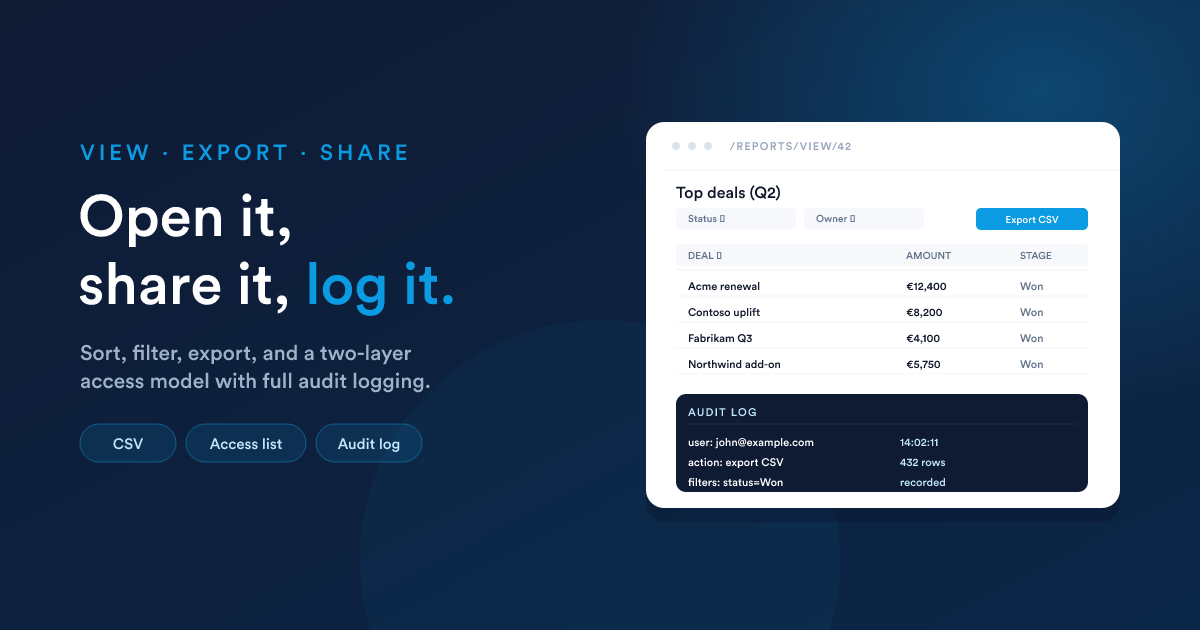
A saved report is opened at /reports/view/{id}. What you see depends on the report's output format:
- Data Grid: header bar, filter row, paginated table, sort by clicking column headers, page-size selector, Export button.
- HTML: the rendered template, with whatever interactivity its CSS or JavaScript adds on top.
The view page (data grid)
For data grid reports the user controls behave as follows.
Sorting
Click any column header to sort by that column. Click again to reverse the direction. The current sort is remembered per user, per report. When the user comes back, their last sort is restored.
If the user hasn't sorted yet, the default sort from the report's settings applies.
Filters
If the report defines user-input filters, they appear above the grid. Submitting them re-runs the query with the filter values applied (via the {filters} substitution or, in manual mode, via Flexie Scripting inside the query).
Active filters are remembered per user, per report, same as sorting.
Pagination
A page-size selector lets the user choose how many rows per page. Below the grid is a standard page navigator. The full 1,000-row result is paginated client-side once retrieved.
If your data set frequently bumps against the 1,000-row cap, that is a sign the report should be aggregated (a
GROUP BY) rather than a flat list. See Performance tips.
Exporting to CSV
Every data grid report has an Export action that produces a CSV download of the full result. The export URL is /reports/view/{id}/export; clicking Export sends the user there.
What the CSV contains
- A header row with the column names from your query.
- One row per result, exported in chunks until the full result set is sent (streamed to the browser as it is generated, so the download starts straight away even for the full 1,000 rows).
- The current filters, sort, and user-context placeholders are all applied. Exports respect whatever filters the user has set, and they produce the same data the on-screen grid is showing.
Filename
The exported file is named:
<report-name>_<YYYY-MM-DD_HH:mm:ss>.csv
…so it is safe to re-export and keep both files without renaming.
Audit log
Every export is recorded in the audit log with the user, the report, the filters used, and the timestamp. This matters when the report contains personal data, see Compliance below.
HTML reports don't have CSV export
HTML reports are pages, not tables; there is nothing rectangular to export. If you need both, build a data grid report for the export and an HTML report for the presentation, and have them share a saved data source.
Access control
A report is gated by two layers that both have to pass: the role-level report permissions the user has, and the per-report "Who can access this report?" list the maintainer sets on the report itself.
Role-level permissions
Flexie's role system carries a set of report permissions an admin assigns to each role. Each one comes in two scopes, own (only the user's own reports) and all (everyone's), plus a full option that bundles everything:
| Permission | What it grants |
|---|---|
| View | Open reports and see their results, scoped to the user's own or to all reports. |
| Create | Create new reports. |
| Edit | Change a report's query, template, filters, or settings. Scoped to own or all. |
| Delete | Remove a report. Scoped to own or all. |
| Full | Everything above. Effectively the reports admin. |
A user needs at least the View permission (in either scope) to use the Reports area at all.
"Who can access this report?"
On each report's settings page there is a single multi-select field, Who can access this report?, that decides who is allowed to open this specific report. You add entries from four kinds:
- All Users: everyone with a "view" report permission can see it.
- Permissions: a role (e.g. Admissions Manager, Spa Manager). Anyone whose role is in the list can see it.
- Groups: a user group. Members of the group can see it.
- Users: a specific person.
You can mix kinds in one report. A viewer is allowed in if they match at least one entry. An empty list means the report has no audience (only an admin with the Full permission can still open it).
Putting the two together
| Role permission | "Who can access" match | What happens |
|---|---|---|
| Full | (irrelevant) | Allowed |
| View all | (irrelevant) | Allowed |
| View own | The user owns the report | Allowed |
| View own | The user doesn't own it | Allowed only if they also match an entry |
| (no view permission) | (irrelevant) | Reports area is hidden entirely |
HTML reports are powerful. They can run arbitrary JavaScript in the viewer's browser. Be mindful when granting Edit rights: that permission lets a user place arbitrary code in pages that other users see.
API access
A report can be read programmatically by another system through the API (authentication: a Flexie API token).
| Endpoint | Returns |
|---|---|
| GET /api/reports | The list of reports the caller has access to. |
| GET /api/reports/{id} | The metadata of one report. |
| GET /api/reports/{id}/data | The rows the report would produce, applying any filters passed as query parameters. |
For workflows and HTML reports, the equivalent in-Flexie access is the getReportData(...) lookup. See Reports in workflows and widgets.
Compliance and privacy
A report can hold or surface personal data. A few things worth knowing:
- Exports are logged. Every CSV download is recorded with the user, the report, the active filters, and the time. If you are handling subject-access requests, this gives you the trail.
- Filters are per-user, kept in the user's session. A user can't see another user's filter set; one user picking a "Country = Germany" filter doesn't change anyone else's view.
- Placeholders enforce context. A report that filters on
{user_id}inherently scopes itself to the signed-in user. Combine that with a "view own" permission to publish a report where everyone sees only their own row. - Restrict who can edit HTML reports. See the note in Access control.
Next steps
- Reports in workflows and dashboards: using a saved report's data from other places.
- Dashboards: most reports end up on a dashboard.