Actions & Decisions
Last updated 23 May 2026
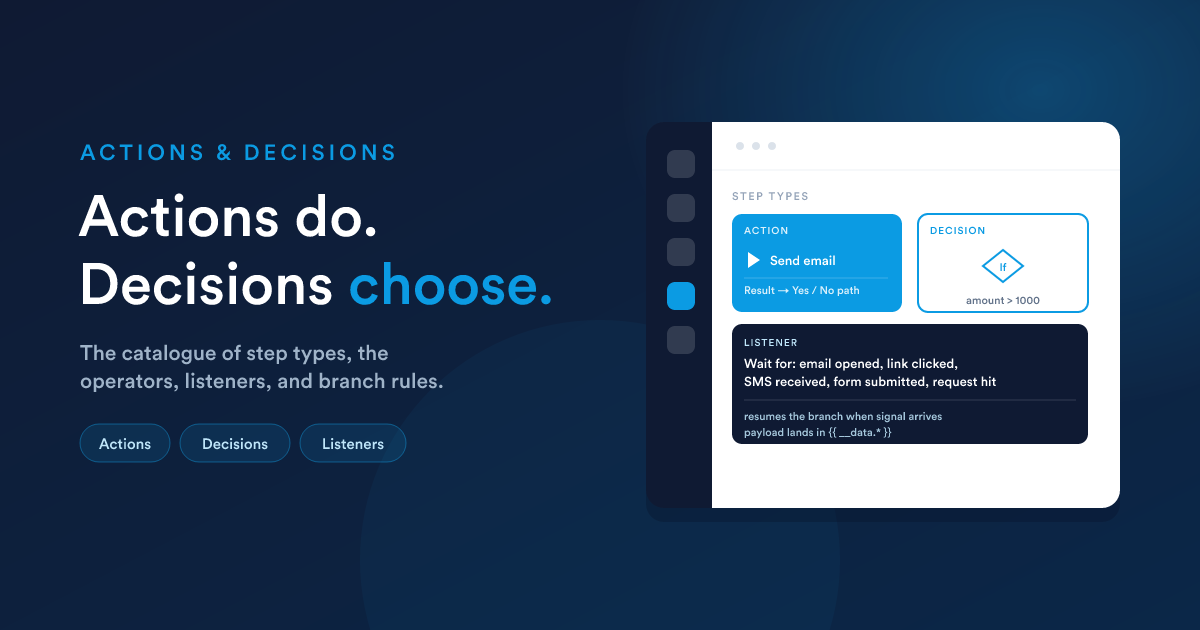
You add these on the builder canvas. Actions perform side effects. Decisions split the path into a Yes branch and a No branch. This page is the catalogue and the rules.
Actions: the steps that do work
An action performs one side effect and then lets the workflow continue. The available actions are grouped by area; the common ones:
Communication
- Send an email using a template or composed inline, with attachments.
- Send an SMS.
- Send a WhatsApp message to numbers you already have an inbound message from.
- Notify a user: push an on-screen notification, or redirect a signed-in user.
Records
- Create a record: a new lead, contact, deal, case, invoice, task, note, or custom record. The new record's id becomes available to later steps, see Passing data.
- Update a record: change fields, stage, owner, or tags. Changing a deal's stage to a won or lost stage sets the won/lost flags correctly.
- Create a task or add a note.
- Process child records: push records related to the current one into a target workflow.
- Delete child records: remove related records (no undo, it is logged to the audit trail).
Documents
- Generate a PDF for an invoice or quote document.
- Work with attachments: copy or attach files.
Logic and integration
- Call a webhook: send an HTTP request to another system, with a body you compose in Flexie Scripting. Can be set to retry on failure, see below.
- Store a value: save a computed value so later steps can use it (
{{ __data.… }}). - Set shared memory: store a value in short-lived shared memory that other workflows can read with
memoryGet(...). - Move to another workflow: remove the record from this workflow and/or add it to a different one.
- An AI step: hand Flexie AI a job in plain words ("review this deal and flag risks," "draft a reply"), and it does that job, unattended, every time the workflow runs. See Flexie AI.
The exact set of actions you see depends on the record type and on which features are enabled for your account.
How an action's result steers the flow
Every action either succeeds or fails, and that result routes what runs next:
- Success → the "Yes" path. Steps connected to the action run.
- Failure → the "No" path. If the action has a separate failure branch, it takes that; otherwise the branch stops there.
When an action fails
By default a failed action stops its branch (and is recorded as failed in the activity logs). For best-effort steps whose failure should not halt everything (an optional notification, a non-critical enrichment), you can set the action to ignore failure: the branch then continues as if it had succeeded, while the failure is still recorded for visibility.
Ignore-failure is for "nice to have" steps. It is not a retry, and it is not for steps that later steps depend on.
Retries
The workflow engine does not retry steps automatically. A few actions implement their own retry where it is safe to do so, most notably the Webhook action, which you can tell to retry a failed request a set number of times. For everything else, a step runs once; if it fails it is logged and the branch follows the failure path. (Email sending has its own delivery-level retry, separate from the workflow.)
Decisions: the steps that choose
A decision checks a condition and routes the record down either its Yes branch or its No branch. There are four kinds, each suited to a different thing to check:
| Decision | Checks… | Use it for |
|---|---|---|
| Record condition | the current record's field values | "is this deal over 10,000?", "is the contact in Germany?" |
| Time condition | the current date and time | "is it a weekday?", "is it after 9am?", "is it January?" |
| Virtual condition | values under __data, anything an earlier step stored, or any field carried in by an inbound web request | branching on a webhook payload or a stored value, see Dynamic Endpoints |
| Core decision | a general condition | a simpler variant of the record condition |
Record conditions: building the filter
A record condition uses the same filter builder you will recognise from smart lists: pick a field, an operator, and a value. You can combine several rules with AND and OR, and nest groups.
The full operator catalogue
| Operator | Meaning |
|---|---|
| equal / not_equal | Value matches / does not match |
| less / less_or_equal | Less than / less than or equal to |
| greater / greater_or_equal | Greater than / greater than or equal to |
| less_than_now / greater_than_now | A datetime field compared to the current moment |
| less_than_today / greater_than_today | A date field compared to today |
| between / not_between | Falls inside / outside a range (you give the two endpoints) |
| begins_with / not_begins_with | Text starts / does not start with the value |
| ends_with / not_ends_with | Text ends / does not end with the value |
| contains / not_contains | Text includes / does not include the value |
| in / not_in | Value is one of / is not one of a comma-separated list |
| in_list / not_in_list | Record is in / is not in a saved smart list |
| includes / excludes | For multi-value fields (tags, multi-select), at least one of / none of the chosen values is present |
| is_empty / is_not_empty | Field is blank / has a value |
| is_null / is_not_null | Field is NULL / is not NULL (subtly different from empty for some field types) |
| is_subscribed / is_not_subscribed | Record is / is not subscribed (for fields linked to subscriptions) |
| is / is_not | A named relative window, see the table below |
| in_polygon | A point field falls inside a polygon shape (geographic filtering) |
Valueless operators still need a value key. For
is_empty,is_not_empty,is_null,is_not_null, the filter builder sets the value to "none" automatically. You just pick the operator.
Relative date windows: is and is_not
When you choose the is or is_not operator on a date or datetime field, you pick from a list of named windows. All windows are evaluated in your account's timezone:
| Resolution | Available values |
|---|---|
| Day | today, yesterday, next_day, birthday_today |
| Hour (datetime) | last_hour, last_12_hours, last_24_hours, next_hour, next_12_hours, next_24_hours |
| Week | this_week, last_week, next_week |
| Month | this_month, last_month, next_month |
| Quarter | this_quarter, last_quarter, next_quarter |
| Year | this_year, last_year, next_year |
| Rolling past | last_7_days, last_14_days, last_30_days, last_60_days, last_90_days |
| Rolling future | next_7_days, next_14_days, next_30_days, next_60_days, next_90_days |
birthday_today matches regardless of year (it compares the month and day), which is how you build "birthday today" automations.
Time conditions
A time condition compares the current moment against rules you set. There are seven time fields to choose from, each one a different slice of "now":
| Field | What it is at evaluation time |
|---|---|
| full_date | The current date and time (Y-m-d H:i:s) |
| date_only | Today's date (Y-m-d) |
| time_only | The current time |
| year | The current year as a number |
| month | The current month as a lower-case name (january, ..., december) |
| date | The current day-of-month as a number (1 to 31) |
| day | The current weekday as a lower-case name (monday, ..., sunday) |
Combine these with the same operators as record conditions (equal, between, is_empty, etc.). For example "only continue Mon to Fri between 09:00 and 17:00" is a time condition with two rules joined by AND.
Time ranges that cross midnight (e.g. between 23:00:00 and 06:00:00) are handled correctly. The engine treats them as a wrap-around window covering both sides of midnight rather than an empty range.
If you need a step (rather than a whole branch) to be limited to a window or day, use the step's own restricted hours and skip days setting instead, it is lighter than a full decision. See Scheduling.
Virtual conditions
A virtual condition compares values that are not stored fields, data that arrived with the trigger or that an earlier step produced, addressed with {{ __data.… }}. This is the decision type you use in dynamic-endpoint workflows. Because its setup is specific, it has its own page: Virtual conditions.
Every decision must have its branches connected. Attach the steps that should run on Yes to the Yes branch, and the steps for No to the No branch. A step left off both branches never runs.
Listeners as mid-workflow gates
A listener placed inside a workflow pauses its branch until an external signal arrives. For instance, send an email, then wait for it to be opened before continuing. When the signal comes, the branch resumes and the signal's data is available to the steps that follow. Listeners as the start of a workflow are covered in Triggers & sources.
The listener catalogue
The available listeners, grouped by area, and where each is meaningful (at the start of a workflow, mid-tree after an earlier step, or both):
| Area | Listener | Where it can sit |
|---|---|---|
| An email is opened | Mid-tree, after a step that sent the email | |
| A link in an email is clicked | Mid-tree, after a step that sent the email | |
| An email replies | Mid-tree | |
| An email bounces or fails | Mid-tree | |
| An attachment is downloaded | Mid-tree | |
| Mailbox | An email arrives in a connected mailbox | Start (a __virtual workflow) |
| SMS / WhatsApp | An SMS or WhatsApp message is received | Start |
| An SMS or WhatsApp message is delivered | Start or mid-tree | |
| Forms | A form is submitted | Start, see Forms |
| Notes & tasks | A new task is created | Start |
| A task is updated | Start | |
| A new note is added | Start | |
| A new comment is added to a note | Start | |
| A user is mentioned in a note or comment | Start | |
| Pages / links | A tracked page is visited | Start |
| Virtual entity | A web request hits a dynamic endpoint | Start of a __virtual workflow, see Dynamic Endpoints |
Some listeners (notably email opened, link clicked, and attachment downloaded) only make sense after an email has been sent earlier in the same workflow, so the builder only offers them as mid-tree steps. The rest can either start a workflow or sit inside one.
Each listener writes its signal's data into the workflow's __data notepad under a specific alias, see the full payload reference in Passing data between steps.
Next steps
- Runtime, parallel execution & the tree: how these steps actually run.
- Passing data between steps: feeding each step from the ones before it.