The Softphone
Last updated 26 May 2026
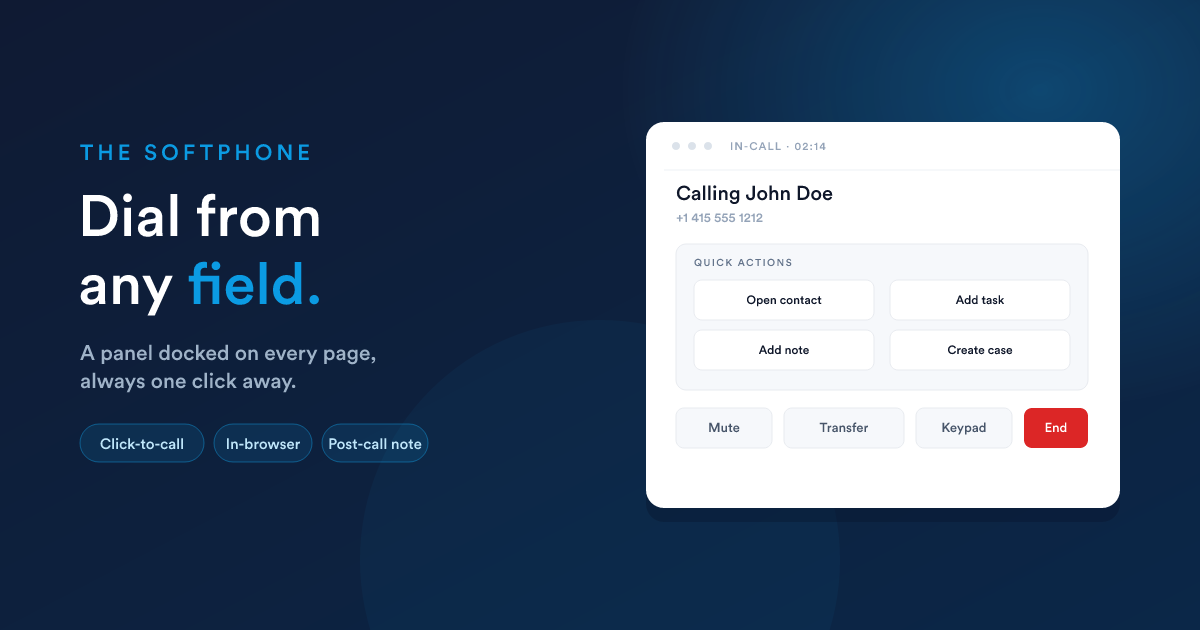
The softphone is the in-browser dialer, a small panel docked at the bottom of every Flexie page. The softphone is visible to any user whose account has a phone channel configured (a Twilio number assigned, or a PBX extension set up, see Channels). Users with neither don't see it.
What the panel looks like
The panel is always docked. You can collapse it to a small bubble when not in use, but it never closes. The ringer, the keypad tones, and the call audio are all wired into this panel.
The status dot
The coloured dot in the header shows the connection state:
| Colour | Means |
|---|---|
| Green | Connected and ready. You can call and receive. |
| Yellow | Connecting. Wait. |
| Red | Disconnected. Something's wrong, check the in-page warnings below. |
Hover for the last status message.
The microphone prompt
The first time a user loads Flexie after the softphone is enabled, the browser asks permission to use the microphone. Granting it is mandatory, without it, calls can't carry audio.
If the user blocks the prompt:
No microphone access. Click the camera icon in your browser's address bar to allow microphone, then refresh the page.
The dialer shows this banner until the permission is granted.
Making a call
There are three ways to start an outbound call.
1. Click-to-call from a record
Open any contact, lead, account, deal, or case. Every phone field (Phone, Mobile, Fax, WhatsApp, the field types listed in Custom records & fields) shows a phone icon next to it. Click it and the softphone dials.
The dialer panel automatically picks up the record's context (caller name, primary identity, quick links to the customer's open tasks, cases, deals, and notes) and shows them inside the in-call panel.
2. Manual dial
Click the keypad button in the softphone header. Type the number (numpad keys also work). When you've entered it, press Enter or click Call.
Manual dial is gated by a permission: users without it see no keypad button and can only click-to-call from records. Manage it through the standard Roles model.
3. From a workflow
Workflows cannot place a call to a customer on their own. Phone is not a marketing or broadcast channel, an agent has to be on the line. Workflows can record a "please call back" intent on the customer's record, but the dialling stays in human hands.
In-call panel
When a call is active, the dialer panel switches to its in-call view. It shows:
- Who you're calling at the top: matched customer name, the number, and a live timer.
- Quick actions for that customer: Open contact, Add task, Add note, Create case, Add deal.
- Call controls at the bottom: Mute, Transfer, Keypad, End.
Controls (every channel)
- Mute: toggle your microphone (the other side stops hearing you).
- Keypad: sends tones during the call (useful for IVRs that ask you to press a key).
- End: hangs up.
Transfer
The Transfer button opens a small popover listing available agents (the Flexie users who are right now logged in and idle). Click one and the call is transferred to them; you drop out.
Available on Twilio out of the box. On a self-hosted PBX, transfer depends on what your PBX supports; usually it just works.
Quick actions during a call
Below the in-call header you'll see contextual buttons for the matched customer:
- Open contact: switches the main page to the customer.
- Add task: opens the task modal pre-filled with the customer.
- Add note: drops a note onto the customer's timeline.
- Create case: escalates to a support case.
- Add deal: starts a new deal off the call.
If no customer matched the number, you get:
- Create lead / Create contact: captures the number into a new record on the fly. The call's already in progress; this just gives the call somewhere to land on a timeline once it ends.
Incoming calls
When a call rings your extension, the dialer panel jumps to the incoming view. It shows the matched customer (if any), the caller's number, and a list of related records (open deals, cases, tasks) so you know who's calling before you pick up.
Click Answer to take the call; Decline to send it to voicemail (Twilio) or to free up the line (PBX).
How the customer is matched
Flexie searches every phone field across leads, contacts, accounts, deals, cases, and users for the incoming number, first making sure it's in international format. Anything that matches is offered as a quick link.
If nothing matches, the incoming view shows just the caller's number and the Create lead / Create contact buttons.
After the call: the note modal
When you hang up, a small modal opens with two things:
| Field | What it does |
|---|---|
| Notes | Free text, the body of the note added to the customer's timeline. |
| Status | If the customer's record type has a configured status field (e.g. lead status, deal status, case status), you can update it right here. The choices come from that field's options. |
Saving creates a note linked to the call's customer and the call record. The note becomes a row on the customer's timeline alongside the call, so when you come back tomorrow, both are visible together.
If you click Skip, the call is still logged; you just don't add a note.
The post-call modal opens by default. It's how teams turn calls into CRM updates rather than letting calls evaporate. If a user really doesn't want it, there's an account-level switch in their preferences.
Keypad tones during the call
The keypad button in the in-call panel sends tones, necessary for the "Press 1 for sales, 2 for support" moment. The panel plays the local tone (so you hear what you pressed) and signals the remote side.
Keyboard shortcuts work too:
0to9for digits*for asterisk#for pound- Numpad keys (
0to9) for the same
Limits and gotchas
- One call at a time per user. A second incoming call rings the caller back as busy (the line is occupied). For more concurrency, use call queues / IVR routing on the PBX or Twilio side, not Flexie.
- The panel doesn't survive a hard refresh during a call. If you reload the page mid-call, the call drops. Soft-navigation (clicking a Flexie link) doesn't drop it, the panel is shared across pages.
- Transfer is best-effort. "Available agents" lists users currently in Flexie with no active call. If they decline or don't answer, the call goes back to the queue.
- Recording starts when the call answers, not when it begins ringing. Voicemails and pre-answer audio aren't captured.
- The customer-match step needs numbers in a consistent format. See Handling messy phone data for the same trick on the phone side: configure a default country prefix and your messy phone data still matches.
Next
- Call logs & timeline: what happens to the record of the call after it ends.
- Workflows: trigger a workflow after a call ends.