Quotes
Last updated 26 May 2026
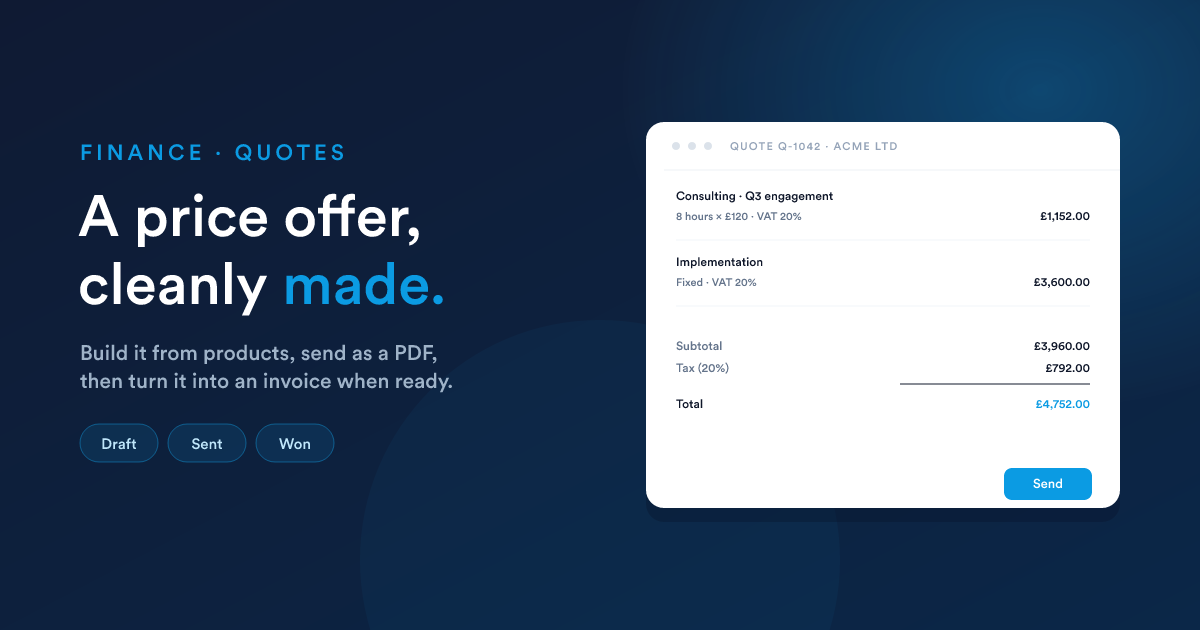
A price offer to your customer, before any money changes hands. Build it from products and services, send it as a PDF, and when the customer agrees, turn it into an invoice.
What a quote is
A quote is a structured offer you make a customer. It lists the things you'll do or sell, what they cost, what taxes apply, and how long the price is good for. It's a working document: you can revise it, share new versions, and negotiate, until the customer agrees.
A quote is not financial yet. It doesn't appear in your revenue, it doesn't create any accounting entries. Only when you turn it into an invoice does the money side begin.
Creating a quote
Click New on the quotes list.
The header
| Field | What it does |
|---|---|
| Title | A short name for the quote (shown internally and at the top of the PDF). |
| Customer name | The person or company the quote is for. |
| Customer (record link) | Link to the contact, lead, or account this customer corresponds to in Flexie, so the quote appears on their timeline. |
| Deal | Optional, link the quote to a sales deal. |
| Owner | The user who owns this quote in Flexie (defaults to you). |
Addresses
Two address blocks, Billing and Shipping:
- Street, city, postcode/ZIP, region/state, country.
- The billing address appears on the PDF; the shipping address is for delivery (useful when they differ).
If the addresses are the same, fill in the billing block and skip shipping (or copy across with one click).
Currency
| Field | What it does |
|---|---|
| Currency | The currency the quote is in, USD, EUR, GBP, any standard currency code. |
| Exchange rate | If the quote is in a foreign currency, the rate to your account's base currency at the time of the quote. |
Validity
| Field | What it does |
|---|---|
| Expiration date | When the price stops being guaranteed. After this date, the quote shows as expired on the customer's view. |
| Terms | Your terms and conditions: pricing notes, payment terms, anything else. Appears at the bottom of the PDF. |
| Internal note | Notes only your team sees, never goes on the PDF. |
Line items
The heart of the quote. Each line is a product or service from your products library.
Adding a line
For each line:
| Field | What it does |
|---|---|
| Product | Pick from your products list. The line auto-fills from the product: description, unit price, unit, tax. |
| Description | The description that appears on the PDF. Pre-filled from the product; override per-line for one-offs. |
| Quantity | How many. The unit (each, hour, day) comes from the product. |
| Unit price | The price per unit. Pre-filled from the product; override for negotiated deals. |
| Discount | A line-level discount, percentage (e.g. 10%) or fixed amount (e.g. £50 off this line). |
| Tax | Which tax applies. Pre-filled from the product; you can change it per line. |
The line total recomputes as you type. Flexie shows you both the subtotal (the maths before tax) and the line total (subtotal minus discount, then add or include tax depending on the product's tax-calculation setting, see Products → Tax).
Reordering and removing lines
Drag the handle on the left of each line to reorder. The little x button at the end removes the line.
Quote-wide discount
Below the line items, an optional quote-level discount applies on top of the subtotal, also as a percentage or fixed amount. Use this for "round it down to a nice number" deals or end-of-quarter incentives.
The totals block
At the bottom of the quote you'll see:
| Amount | |
|---|---|
| Subtotal | £1,234.56 |
| Discount | −£50.00 |
| Tax | £236.91 |
| Total | £1,421.47 |
When all lines use tax-inclusive pricing, the layout shifts slightly to show Total including tax with the tax broken out below, still adding up to the same total.
Quote status
A quote moves through a small set of statuses:
| Status | Meaning |
|---|---|
| Draft | Being worked on. Not sent to the customer yet. |
| Sent | Delivered to the customer (email, SMS, WhatsApp, PDF download). |
| Won | The customer has agreed, but no invoice has been raised yet. |
| Invoiced | One or more invoices have been raised against this quote. Once invoiced, the quote is locked from edits. |
| Cancelled | The deal didn't close, or the quote was withdrawn. |
You can move a quote between Draft and Sent freely. Once it's been invoiced (even partially), the quote is read-only, see Convert to Cash.
Versions
Sometimes a quote goes through several revisions before the customer agrees ("can you take that line out and add this one?"). Each save creates a version. The quote keeps a version number so you can see how many revisions it's been through, and the PDF shows the version of the quote at the moment of send.
Sending the quote
You can deliver a quote three ways:
- Download PDF, for printing or handing over in person.
- Email, directly from the quote, with the PDF attached. You can pick a template (e.g. "Quote, first send", "Quote, revised"), see Templates.
- SMS or WhatsApp, a short message with a link to the quote's PDF.
After sending, the quote's status flips to Sent.
What the customer sees
The PDF is a branded document showing:
- Your company name, logo, contact details (from your account settings).
- The customer's name and address.
- The quote number, date, and expiration date.
- The line items with quantities, unit prices, discounts, and taxes.
- The totals block.
- Your terms and conditions.
Layouts come from quote templates, your administrator can edit the HTML / CSS to match your branding.
Acceptance
When the customer says yes, you move the quote forward, see Convert to Cash for the full flow.
In short:
- Open the quote.
- Click Convert to Invoice (or Convert to Cash, depending on the build).
- Pick how you want to invoice it, full, percentage, fixed amount, see the deep-dive.
- Flexie creates the invoice(s) and updates the quote's status.
If the customer declines, change the quote's status to Cancelled.
Gotchas
- A line's price is captured the moment you add it. Changing the product's master price later doesn't change quotes that already use it. Useful, your historical quotes stay accurate.
- Don't edit a quote that's already been invoiced. Flexie locks it for you, but if you absolutely need to revise (say, the customer changed their mind) create a fresh quote. The invoiced amount on the old quote stays on the books.
- Expiration dates are advisory. A quote past its expiration date still works; it just shows the customer that the offer has expired. Renew by changing the expiration date and re-sending.
- Foreign-currency quotes record the exchange rate at the moment the quote was made. The exchange rate at invoice time is what ends up in your books, they can differ; Flexie shows you both.
Next
- Invoices: what the quote becomes when the customer agrees.
- Convert to Cash: the smart bridge from quote to invoice, including down payments and partial invoicing.