Layout & Sharing
Last updated 25 May 2026
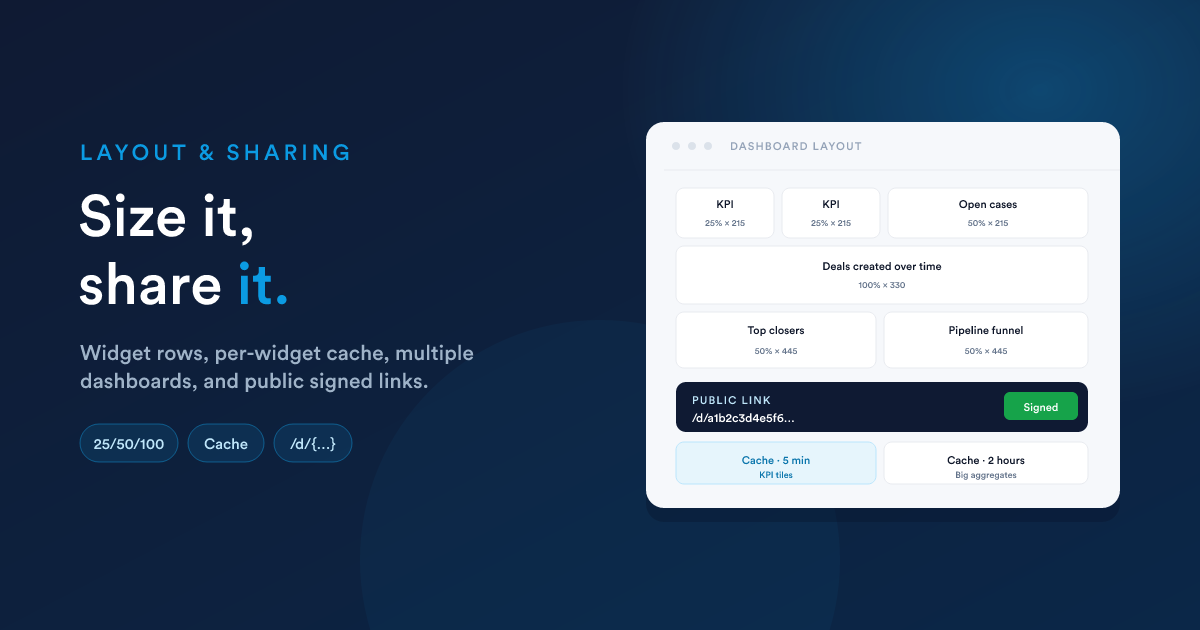
Sizing a widget
Every widget has a width and a height.
Width
Pick one of four values:
- 25%: a quarter of the dashboard row
- 50%: half a row
- 75%: three-quarters
- 100%: full row
Widgets flow left to right and wrap automatically. Two 50% widgets sit on one row, four 25% widgets sit on one row, a 75% followed by a 25% sit on one row, and so on.
Height
Pick one of a handful of preset heights, or Auto:
- 215px: single KPI tile / small chart
- 330px: comfortable chart with legend
- 445px: large chart
- 560px / 675px / 850px / 1024px: for big dashboards-in-a-widget
- Auto: let the widget grow with its content (useful for HTML widgets whose natural height varies)
The preset heights make rows of mixed widgets line up tidily. Use Auto when a widget's content varies (for example a list whose row count changes), and match neighbours' heights when you want a clean grid.
Choosing sizes well
A few rules of thumb:
- Big numbers want small tiles. A single-value KPI looks best at 215px.
- Time-series charts want width. 50% × 330px or wider.
- Bar charts with many bars need vertical room; 445px is usually right for top-10 lists.
- HTML widgets with lots of content are usually 100% wide with Auto height.
Ordering widgets
Each widget has a numeric ordering value. Widgets are sorted by ordering ascending, then flowed left-to-right, top-to-bottom.
In practice you'll move widgets around via drag-and-drop or reorder controls on the dashboard; those update the stored ordering for you. You don't have to set the number by hand.
Two widgets with the same ordering number tie-break by their underlying id (creation order), which is usually fine but can produce surprising results after long edit histories. If two adjacent widgets won't stay in the order you want, set their ordering values explicitly.
The cache and refresh
Each widget has its own cache lifetime (in minutes):
0: no cache; the widget recomputes every time the dashboard is opened. Use sparingly, only for KPIs you genuinely want live.- Any positive number: keep the computed widget for that many minutes before recomputing.
- Unset / default: the system default applies (2 hours out of the box).
The cache is per widget, per user context. So:
- A dashboard with 12 widgets does not query the database 12 times every page load; only the widgets whose cache has expired recompute.
- Two users opening the same dashboard see consistent data once their cached copy has settled.
Manual refresh
Use the dashboard's Refresh action to force a recompute of every widget regardless of cache. Use widget-level refresh (where available) to force a single widget.
When to lower the cache
- Real-time-feeling KPIs: 1 to 5 minutes is reasonable.
- Counts of "today's activity": 5 to 15 minutes.
- Big aggregate queries: leave them on the default 2 hours; they are expensive to compute and rarely worth recomputing more often.
Multiple dashboards
You can build as many dashboards as you need, typically one per role or team:
- "Sales, pipeline"
- "Support, case load"
- "Leadership, KPIs"
- "My personal dashboard"
One dashboard is the system default, the one that opens at /dashboard for users who don't have a personal pinned dashboard. Mark a dashboard as the default in its settings.
Other dashboards are reached either by name from a dropdown on the dashboard page, or by direct URL (each dashboard has its own id).
Access control
A dashboard has the same Who can access this dashboard? field a report does. See Reports: Access control for the long explanation. In short, you combine entries from:
- All Users,
- specific roles (under Permissions),
- Groups, or
- individual Users.
A user matching at least one entry can open the dashboard. A user matching none can't, and the dashboard won't appear in their dashboard list.
The system default dashboard should normally include All Users so anyone landing on /dashboard sees something useful.
Sharing a dashboard publicly
For sharing a dashboard with someone outside Flexie, a partner, an external stakeholder, a client, without giving them a login, you can publish the dashboard behind a public signed link.
The link
Public dashboards are served from the URL pattern:
/d/{hash}
Where {hash} is a long unguessable identifier generated when you publish the share. Opening that URL renders the dashboard in a stripped-down, read-only mode: no Flexie chrome, no other dashboards, just the widgets.
Configuring a share
When creating a public share you set:
- The dashboard to share.
- An email (optional): typically the email of the recipient, recorded for your audit trail.
- A password (optional): if set, the public page asks for it before rendering. Useful for sharing with someone who shouldn't be able to forward the link.
- An expiry date (optional): after which the link returns a "share expired" page.
What the recipient sees
A public viewer sees the same widgets a logged-in user would, recomputed on their cache lifetimes. Widgets the recipient should not see (for instance ones that show sensitive internal numbers) should be moved to a separate internal dashboard; public shares show the whole dashboard.
Revoking a share
Delete the share to revoke the link. The URL stops working immediately.
The share's link is unguessable, but it is still a URL. If someone forwards it, anyone who has it can open it (subject to expiry or password). Treat shared dashboard URLs with the same care as you would any other link.
Putting it all together, a sample dashboard layout
A typical sales-team dashboard, laid out:
| Row | Widgets | Width | Height |
|---|---|---|---|
| 1 | Won deals KPI · Pipeline value · Open cases | 25% / 25% / 50% | 215px |
| 2 | Deals created over time (line chart) | 100% | 330px |
| 3 | Top closers (bar) · Pipeline funnel | 50% / 50% | 445px |
| 4 | Custom HTML widget, team leaderboard | 100% | Auto |
Set the KPI tiles to a 5-minute cache; leave the long charts on the 2-hour default; set the leaderboard's cache to 15 minutes.
Next steps
- Built-in widgets: the catalogue of widget types.
- Report widgets: turning a saved report into a widget.
- Custom HTML widgets: when the catalogue isn't enough.