Channels
Last updated 26 May 2026
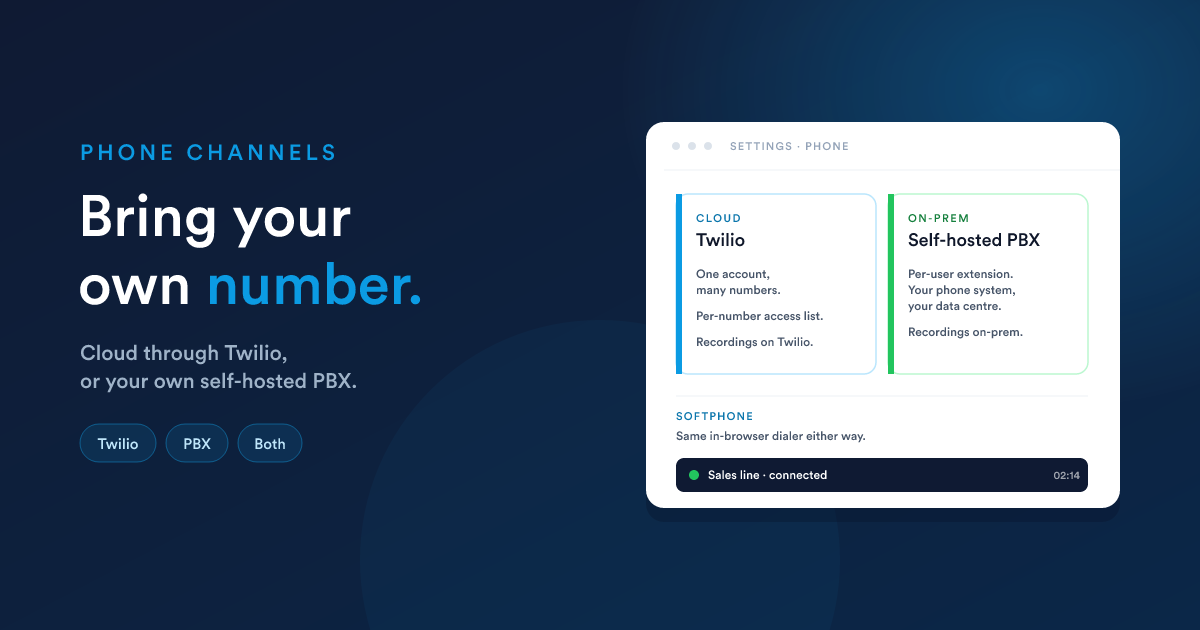
The two channels Flexie's built-in phone can run on. Pick the one that fits, configure it, give your team access, and the softphone starts working everywhere.
Picking a channel
A quick decision matrix:
| If you… | Pick |
|---|---|
| Have no existing phone system, want to launch in a day, are happy with a third party hosting the calls | Twilio |
| Already run an in-house phone system (or are required to), need recordings to stay on your premises | Self-hosted PBX |
Channel A: Twilio
1. Connect a Twilio account
In Twilio Accounts, click New.
| Field | Description |
|---|---|
| Name | Friendly label (shown in the account picker, e.g. "Sales account"). |
| Account SID | Your Twilio Account SID (starts with AC...). |
| Auth Token | The matching auth token. |
| API Key SID | A Twilio API Key (starts with SK...). Used by Flexie to sign per-user calls. |
| API Secret | The matching API secret. |
| Record calls | Yes / No. When on, every call placed through this account is recorded. Recordings live on Twilio's servers; Flexie keeps a link to each one. |
| Incoming call timeout | Seconds an incoming call rings before Flexie gives up. |
| Incoming call failure URL | A fallback URL Twilio fetches if no Flexie agent picks up before the timeout (e.g. an external voicemail or IVR). Leave blank to hang up. |
Save. Flexie generates two private webhook URLs for this account that Twilio will use to talk to Flexie. You'll see them on the account's detail page.
2. Add phone numbers
Open Twilio Numbers → New.
| Field | Description |
|---|---|
| Phone number | Pick a number from the dropdown. Flexie shows the numbers your Twilio account owns. |
| Friendly name | Optional label (e.g. "Main Sales Line"). |
| Users who can call | The Flexie users authorised to make voice calls from this number. |
| Users who can SMS | The Flexie users authorised to send SMS from this number. |
Each Twilio number can be assigned to many users; each user can have access to many numbers. When a user makes a call, the dialer offers them the numbers they're allowed to use as the From number.
3. Connect Twilio to Flexie
For Twilio to know how Flexie wants calls handled, paste the two URLs shown on the Twilio account's detail page in Flexie into the matching Voice URL and Status Callback URL fields on the Twilio side. Twilio's console will guide you to the right place to paste each one.
Treat those URLs as secrets. If you suspect one has leaked, delete the account in Flexie and re-create it. The new account gets fresh URLs and the old ones stop working immediately.
4. Access control
Anyone you've added to the Users who can call list on a Twilio number can use that number to make and receive calls. The Twilio configuration and stats screens have their own access settings, manage them through the standard Roles model.
Channel B: Self-hosted PBX
This channel is for phone systems you operate yourself. Unlike Twilio (where one account holds many numbers), the self-hosted PBX channel uses a per-user extension, one extension per Flexie user.
1. Per-user extension
In VoIP Accounts, click New.
| Field | Description |
|---|---|
| Owner | Which Flexie user this extension belongs to. A user can only have one. |
| PBX bridging | Yes / No, whether bridging behaviour is on for this account. Leave at your PBX's recommended default. |
| Used by all | Yes / No. When on, the extension is also usable by every other user. Typically off; useful for shared lines. |
| Username | The username your PBX uses to identify this extension. |
| Identity | The address presented to the PBX (e.g. 1001@pbx.example.com). |
| Password | The password for this extension. |
| Server | Your PBX's hostname. |
| Global prefix | Digits to prepend to every outbound number (e.g. 9 if your PBX needs a 9 for outside calls). |
| Global postfix | Digits to append (rarely needed). |
Save. The user's softphone registers to the PBX as soon as they next load a Flexie page.
2. Connect the PBX to Flexie
When the PBX answers or completes a call, it should notify Flexie so the call appears on the customer's timeline. Your PBX integrator wires this up. They'll need three URLs from your Flexie admin (one for inbound notifications, one for outbound notifications, and one for the final call log). Ask Flexie support if you'd like a hand.
3. Access control
By default a user with their own extension can make and receive calls. The call-logs and channel-configuration screens have their own access settings, manage them through the standard Roles model.
Gotchas
- One Twilio account, many numbers vs. one extension per user. The two channels model the world differently. Don't try to fight it. If you outgrow per-user PBX extensions, switch channels.
- The softphone needs a secure (HTTPS) Flexie tenant. Browsers refuse microphone access from non-secure pages, and without microphone access the softphone can't ring or talk. Make sure your tenant is on an
https://URL. - Browser permission prompts. The first time a user opens Flexie after the softphone is enabled, the browser asks for microphone access. Users who block it can't make or receive calls. There's a prominent in-page warning explaining how to unblock.
- Outbound caller ID for Twilio must be a number you own or a verified caller ID. Twilio rejects calls from unowned numbers; the agent gets an error toast.
- PBX connectivity. If users sit behind strict firewalls, your PBX team may need to open up specific traffic so the browser can reach the PBX. They'll know what's needed.
- Recordings. On Twilio they live on Twilio's servers (Flexie keeps a link, plays them back on demand). On the self-hosted PBX, they live on your infrastructure (Flexie stores whatever link the PBX hands it). Replace the wrong link and the playback button breaks silently. It's a URL, not a guarantee.
Next
- The softphone: what users see and do once a channel is configured.
- Call logs & timeline: what each call leaves behind.