Settings & models
Last updated 6 June 2026
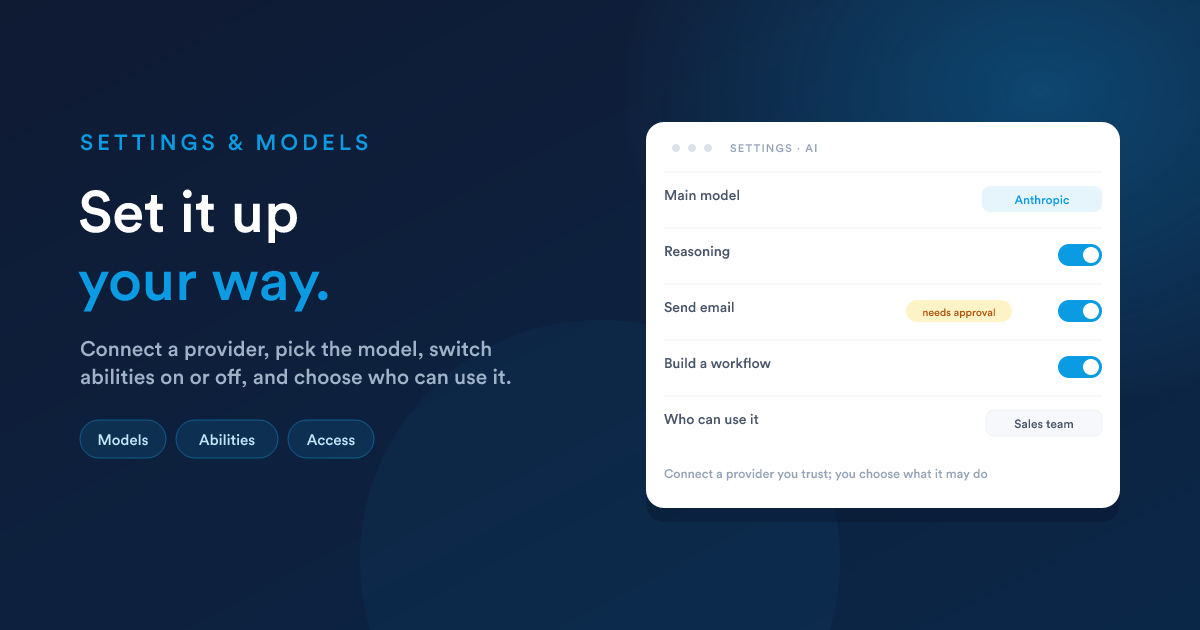
Everything that shapes the assistant lives in one place: which AI powers it, which abilities it has, what needs approval, which knowledge bases it draws on, and who is allowed to use it. Configuring the AI is an administrator task.
Connecting the AI
Flexie's AI runs on an AI provider you connect. Under AI Vendors & Models you add one or more, each with:
- Name: a label for this connection.
- Vendor: the AI provider (OpenAI, Anthropic, or DeepSeek).
- Model: which of that provider's models to use.
- API Key: the credential from your provider account that authorises Flexie to use it.
- Organization: an extra account detail required by some providers.
You can connect more than one, which lets you use different models for different jobs.
A note on your data. When you enable the AI, you are authorising the provider you chose to process the business data involved in each request, under their privacy and security terms. Choose a provider you trust. See Approvals & safety.
The main model
You pick one connection as the main model: the AI that powers the everyday assistant your team chats with. This is the workhorse, so most accounts choose a strong, well-rounded model here.
Specialists
Below the main model you can add specialists: focused helpers for big, specific jobs. Each has its own model, its own selected abilities, its own short brief, and its own knowledge bases. The main assistant calls on them automatically. See Specialists.
Abilities and approvals
Two settings govern what the assistant can do:
- Agent Tools: turn each ability on or off. Only the abilities you switch on are available. See What the assistant can do.
- Require Confirmation: for any ability, decide whether it must pause for the user's go-ahead before it acts. A common choice is to let reading and searching run freely while anything that sends a message or changes a record waits for approval. See Approvals & safety.
Knowledge bases
Under Brains, choose which of your knowledge bases the assistant can read and, where they are editable, update. Only the knowledge bases you select here are available to it. See Knowledge bases.
Reasoning
Enable Reasoning lets the model think a problem through step by step before it answers, which improves results on harder requests. It is on by default. Turning it off makes simple jobs faster and cheaper.
Who can use the assistant
Finally, you choose which users or teams are allowed to use the AI at all. Everyone else simply does not have it. This works hand in hand with the core safety rule: when a permitted user runs the assistant, it inherits that user's existing permissions, so access is set by two independent dials.
See Accounts, Teams & Security.
Closely related
- Approvals & safety: the rules these settings enforce.
- Specialists: set up focused helpers.
- Knowledge bases: build the libraries you assign here.
- Accounts, Teams & Security: users, teams, and permissions.