Workflows
Last updated 26 May 2026
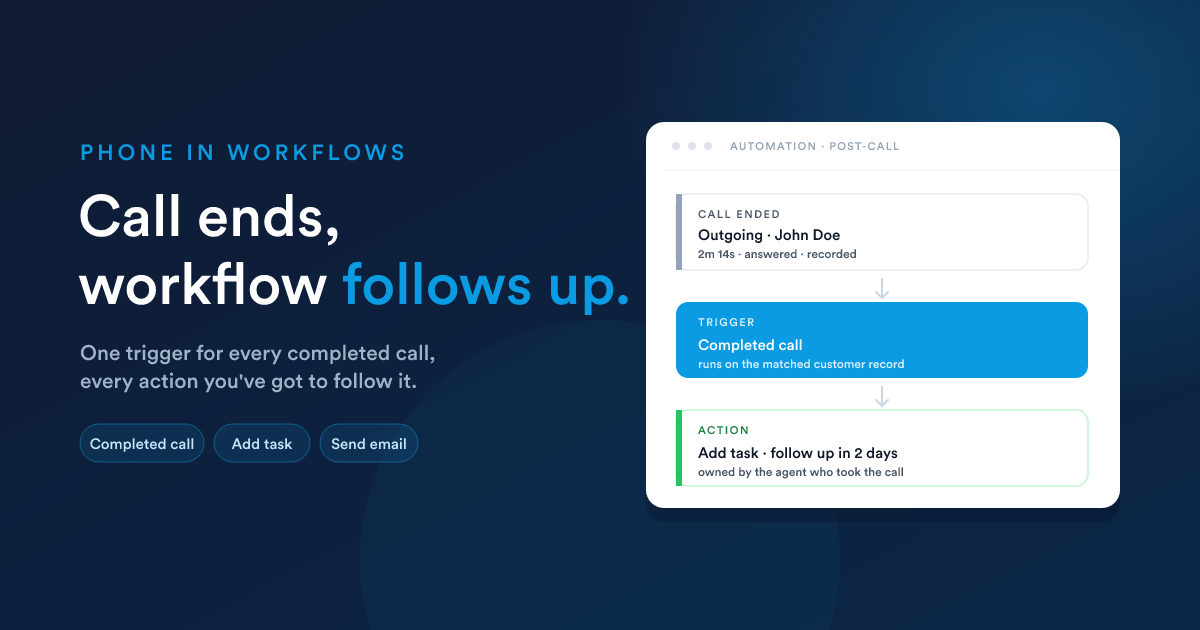
When a call ends, an automation can pick up. Log a follow-up task, send a thank-you SMS, change a deal stage, fire any other workflow action. This page is the consolidated guide to the Completed call trigger and the Match past calls to this record action.
For workflow fundamentals (building, runtime, parallel branches, passing data) see Workflows.
At a glance
Trigger: Completed call
Use this when you want a workflow to react after a call wraps up: log a follow-up, send a thank-you, escalate to a case, change a deal stage.
The trigger exists on both channels (Twilio and the self-hosted PBX). The form is the same on both; you just pick whichever your account uses.
Form fields
| Field | What it does |
|---|---|
| Call direction | Any, Incoming, or Outgoing. Restrict to calls in this direction. |
| First call only | Yes / No. When Yes, the workflow only runs on the customer's very first completed call. Subsequent calls don't run it. |
When the trigger runs
The trigger runs after a call ends, but only if all three of these are true:
- The call was answered (someone picked up).
- The call had measurable talk time (it wasn't just a momentary pickup-and-drop).
- The call was recorded, on channels where recording is on.
So:
- A missed call doesn't run it.
- A busy or declined call doesn't run it.
- A call where recording is off doesn't run it, even if it was a great conversation.
If you need to react to missed calls or to calls without a recording, take a different route. For example, a periodic workflow that checks the call-logs list, or a workflow off the customer record's field changes when an agent updates a status in the post-call modal.
Important: what the trigger gives you
The trigger tells the workflow that a call happened, but it doesn't drop a bag of call details into your workflow.
In other words: when your workflow's next step runs, it knows which customer the call was about (the record the workflow is running on), but it doesn't automatically know that specific call's duration, recording link, agent, or direction.
That's an intentional design point. Most automations just need to know "a call happened, do X next". For workflows that need the specific call details, two patterns:
Pattern 1: use the customer's own fields
The post-call note modal updates the record's status field (lead status, deal status, case status, whichever's configured). A workflow can read that field like any other:
Decision    Status = "Qualified"?
   ├─ Yes ─► Action  Send email           template: "Welcome to onboarding"
   │
   └─ No  ─► Action  Add task             "Follow up, qualify lead"
Pattern 2: use the customer's call history
If you really need the call's duration, recording link, or other specifics, the most recent call against the customer is queryable through Flexie Scripting. Your platform admin will give you the exact snippet for your account. The example below is illustrative:
{# Pull the customer's most-recent call, your admin will give you
   the exact field names for your account. #}
{% set last_call = ... %}

Last call was {{ last_call.duration }} seconds.
Recording: {{ last_call.recording_url }}
For most teams this is overkill. The post-call note modal plus customer-record fields are usually enough.
Action: Match past calls to this record
A bulk backfill action. Scans the call history and attaches past calls to the workflow's customer record whenever the call's caller or callee number matches one of the record's phone fields.
When to use it
After importing customer records that already have phone numbers, run this action on every newly imported lead or contact to attach historical calls that happened before the record existed.
Typical workflow:
Trigger    Record created                   (any new contact / lead)
   │
   ▼
Action     Match past calls to this record  phone fields: Mobile, Phone
When the action runs, it looks at every value in the selected fields and attaches every past call whose number matches.
Form fields
| Field | What it does |
|---|---|
| Phone fields | Pick the fields on the record whose values should be tried as match keys. Choices come from the record's Phone and Mobile fields. |
The action lives on the self-hosted PBX channel. On Twilio, historical calls are linked the moment they come in (the auto-link step runs as part of the call's lifecycle), so there's no separate backfill needed.
Common recipes
1. After every answered call → create a follow-up task
The task is created against the same customer the call was linked to.
2. First-ever incoming call → trigger onboarding sequence
3. Backfill historical calls when a record is imported
Every past call to or from the new record's phone number is linked retroactively, and the call events show up on the customer's timeline.
4. Use the post-call status field to branch a workflow
Gotchas
- Gating-only trigger, no extra data. This bears repeating because every team learning this trips on it once. The trigger tells the workflow a call happened; it doesn't make the call's duration, recording, or agent automatically available.
- Recording required. If your channel doesn't record (compliance, cost), the trigger doesn't run. Build the automation off a different signal, e.g. a status change in the post-call modal.
- First-call detection is per customer. "First call" means "first call linked to this specific customer record". A call from the same number that linked to a different record (e.g. a lead vs a contact) counts as "first" on each: fire-once-per-customer, not fire-once-per-number.
- Same-call-many-customers. A call that links to multiple records (e.g. an account and a contact) runs the workflow once per record. If you want only one to run, restrict the workflow's record type accordingly.
Next
- Live monitor: for real-time call supervision, alongside the post-call workflow trigger covered here.
- Workflows: the engine these triggers and actions plug into.
- Flexie Scripting: the language used in message bodies and decision expressions.