Templates (Email & SMS)
Last updated 26 May 2026
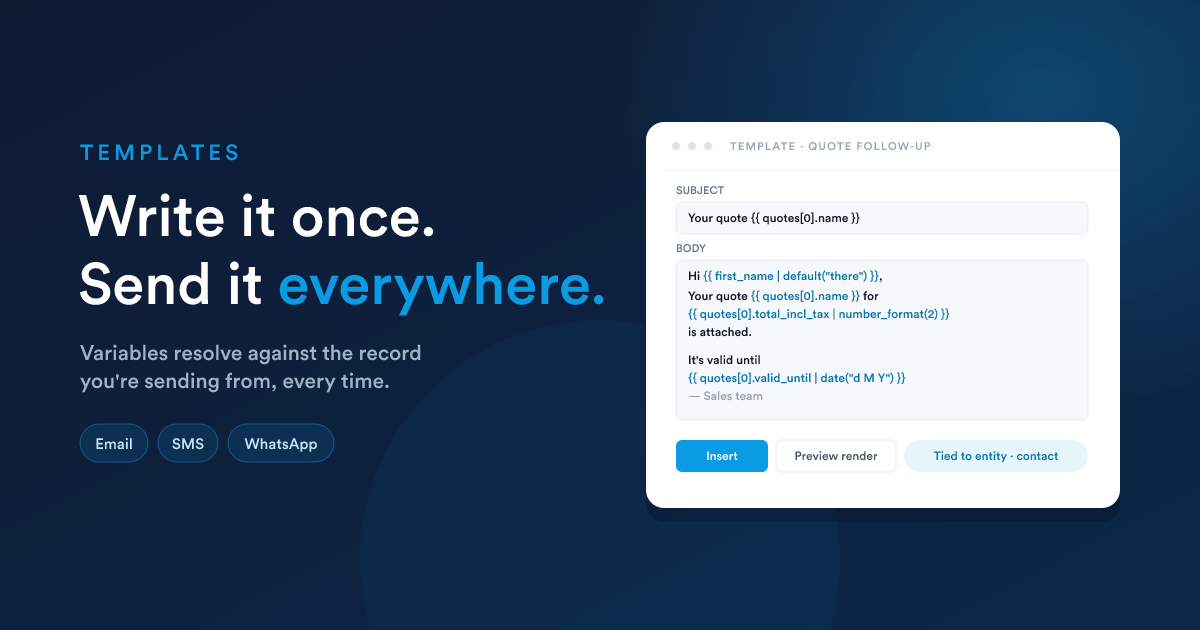
Saved messages with variables you drop into compose with one click. Email templates and SMS templates are separate libraries; the SMS library also feeds the WhatsApp compose form.
Why templates
Three reasons you'll keep coming back to them:
- Speed: a recurring reply ("Thanks for getting in touch, here's the next step…") takes one click rather than two minutes.
- Consistency: everyone on the team sends the same wording, formatted the same way.
- Variables:
{{ first_name }},{{ invoices[0].total_incl_tax }},{{ now("d M Y") }}, written once, personalised on every send. The templating language is Flexie Scripting.
Templates work the same way whether you're composing manually or sending from a workflow action.
Email templates
Creating a template
The form fields:
| Field | What it does |
|---|---|
| Name | Internal label, shown in the template picker. |
| Description | A note about when to use this template. |
| Subject | The email subject line, accepts variables. |
| From address / From name | Override the sender for emails using this template (leave blank to use the user's default mailbox). |
| Reply-to address | Override where replies go (e.g. a shared support address). |
| CC / BCC address | Default CC/BCC recipients. |
| Language | Two-letter language code, used by the language-aware template picker. |
| Email type | Template (used by users / workflows), Broadcast (used for mass-send campaigns), or others depending on what's installed. |
| Template layout | The HTML wrapper layout: header, footer, branding. |
| Custom HTML | The body, in HTML, with variables. Edit via the visual builder or the HTML editor. |
| Plain text | An auto-generated plain-text fallback (you can override). |
| Record type | Which record type variables resolve against (lead, contact, deal, case, …). Determines what's in scope when the template is rendered. |
| Track all links | Yes / No, wraps every link with a click-tracker so opens become measurable. |
| Publish up / down | Optional date range during which this template is usable. |
| Access list | Who can use this template (combinations of all users / roles / groups / named users). |
Variables in email templates
Wherever the template asks for text (subject, body, BCC, anywhere) you can use Flexie Scripting:
<p>Hi {{ first_name | default("there") }},</p>
<p>Your quote <strong>{{ quotes[0].name }}</strong> for
   {{ quotes[0].total_incl_tax | number_format(2) }} is attached.</p>
<p>It's valid until {{ quotes[0].valid_until | date("d M Y") }}.</p>
The "current record" is whatever the template is being rendered against: the contact you clicked Compose from, the lead a workflow is running on, etc. Related records are arrays (contacts[0], accounts[0], quotes[0], …). See Flexie Scripting → Language basics for the full rules.
Tracking: opens and clicks
If Track all links is on:
- Every link in the email is rewritten to go through Flexie's click-tracker first, then on to the original URL.
- A tiny invisible image is inserted in the HTML for open tracking.
Each click is logged on the recipient's record; opens become the trigger for the Email opened workflow trigger. Open any email template to see its per-message Stats (opens, clicks, delivery counts) and its Clicks breakdown (which links were clicked, by whom, when).
A/B testing
For broadcast-type emails, the template form has a Variant tab. You can:
- Define one or more variant subjects/bodies/HTML.
- Set the split weight (e.g. A/B 50/50, or A/B/C/D).
- Pick a winner by open-rate or click-rate after a chosen window.
Personal signatures vs templates
A user's email signature is part of their mailbox account profile (set on the mailbox itself), not a template. Signatures are appended to the body of every outbound email; templates are inserted into the body. Both work together: your template provides the message; your signature finishes it.
SMS templates
Creating an SMS template
The form fields:
| Field | What it does |
|---|---|
| Name | Internal label, shown in the template picker. |
| Text | The message body, accepts variables. |
| Record type | Which record type variables resolve against (lead, contact, etc.). |
| Category | Optional folder for grouping templates. |
| Owner | Who created it (visible in the list). |
| Access list | Who can use this template. |
Variables: same rules as email
Hi {{ first_name }}, your appointment is on
{{ next_appointment | date("D d M, H:i") }} at {{ accounts[0].address }}.
Reply YES to confirm, NO to reschedule.
Be mindful of length. The compose form shows live character plus segment counts; templates with long variable expansions (e.g. a full street address) can push a one-segment template into three. Test the template against a real customer before saving.
SMS templates feed WhatsApp compose
Both the SMS compose form and the WhatsApp compose form share the SMS template picker. A "We received your invoice" template you wrote for SMS is also available when replying on WhatsApp. There's no separate "WhatsApp template" library today; if you need a WhatsApp-only template, either prefix it ([WA]) or limit its access list to people who only work in WhatsApp.
The other direction also matters: WhatsApp lets you attach media, while SMS can only attach a link. If your template assumes an image is attached, that works in WhatsApp but not in SMS. Keep the template's text self-contained, and add media on the compose form for WhatsApp.
Using a template
From compose
In the email or SMS compose form, Templates opens a picker. You'll see templates filtered by:
- the current record type (only templates whose Record type matches),
- your access (templates you're allowed to use),
- your language preference (when the template has a Language set).
Click a template → its content is inserted into the compose body (replacing or appending depending on the picker). Variables aren't expanded until Send, that way you can edit the populated text first.
From a workflow
The Send email workflow action has a Template picker, pick one, and the action uses its subject, body, from/reply-to addresses. The Send SMS and Send WhatsApp actions accept the SMS template via the same picker.
You can still override individual fields (subject, body, recipient) on the action; the template gives you a starting point.
Gotchas
- A template set to the wrong record type won't show up. If your template's Record type is Lead and you're composing from a Contact's page, it won't appear in the picker. Either change it to the right record type, or duplicate it.
- Variables on send-from-inbox. When you compose from the inbox (without picking a customer first), variables that reference customer fields render as blanks. Compose from a customer's page if you want variables to resolve.
- The "language" field is opt-in. Setting it filters the picker for users whose preference matches. Leaving it blank means the template shows up for everyone, usually what you want.
- CC/BCC at the template level. These apply to every send from the template. Don't put a personal address here; use the Reply-to field for a shared support inbox instead.
- Tracking only works for HTML sends. A plain-text-only email doesn't carry click trackers or open pixels.
Next
- Workflows & automation: using templates from the send-message workflow actions.
- Flexie Scripting → Language basics: the variables you can use inside the template body.